Create, Edit and Restyle images with Nano Banana in Kaiber Canvas
A guide to editing images with Nano Banana, Nano Banana Pro and Nano Banana 2
Written By Christine Larsen
Last updated 5 months ago
Kaiber Canvas has three Nano Banana models for image generation and editing: Nano Banana, Nano Banana 2, and Nano Banana Pro. All three handle targeted edits from a prompt. Nano Banana 2 and Nano Banana Pro are the better pick for complex edits — think changing multiple things in one generation or following a detailed, layered prompt.
How to Access Edit Image
From the home screen: Click Create Image, then select Edit Image. You'll be prompted to upload a reference image before continuing. Drag one in, upload a file, or pull from your library. Once it's added, click Continue. This will open the Image Editor canvas.
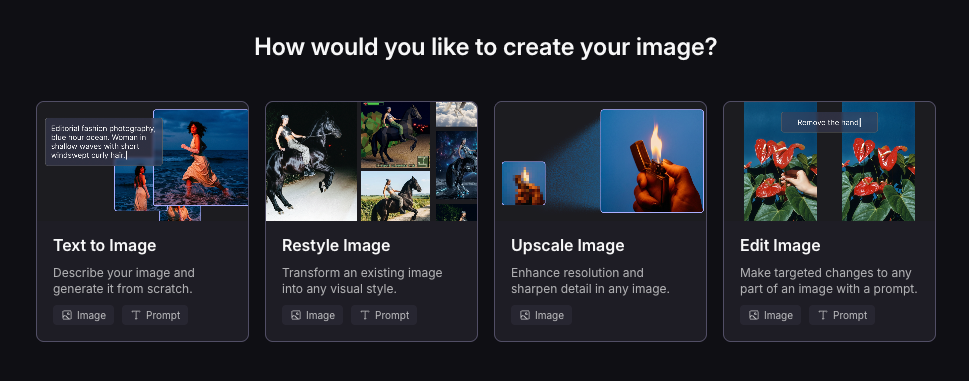
From the left toolbar: Click Create Image to bring up the menu and select Edit Image
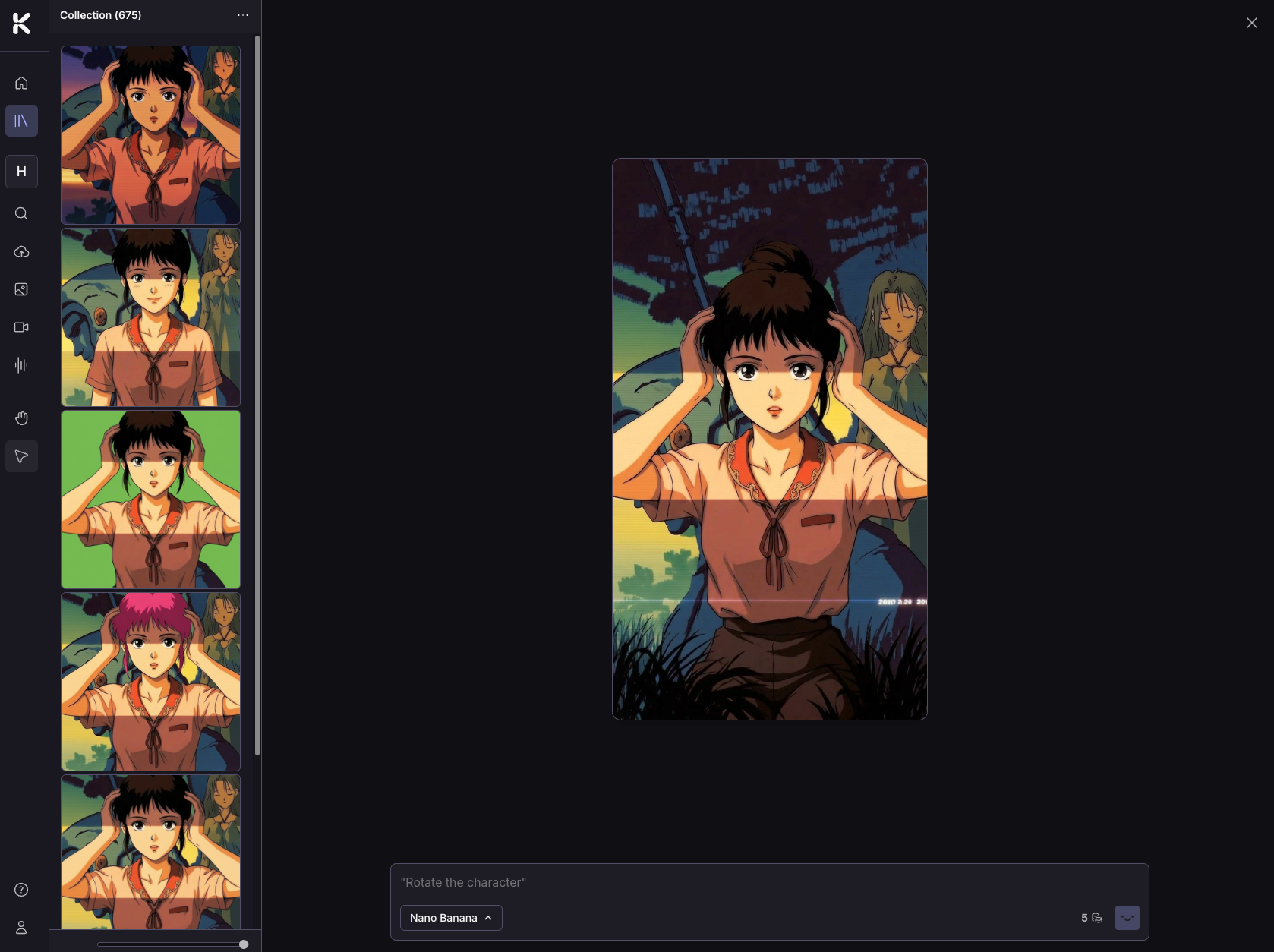
Already in the canvas: Double click an image, or click the edit image button on the right of an image to open it in the image edit window.
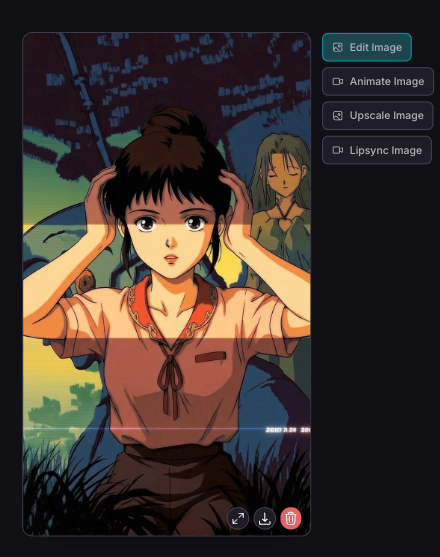
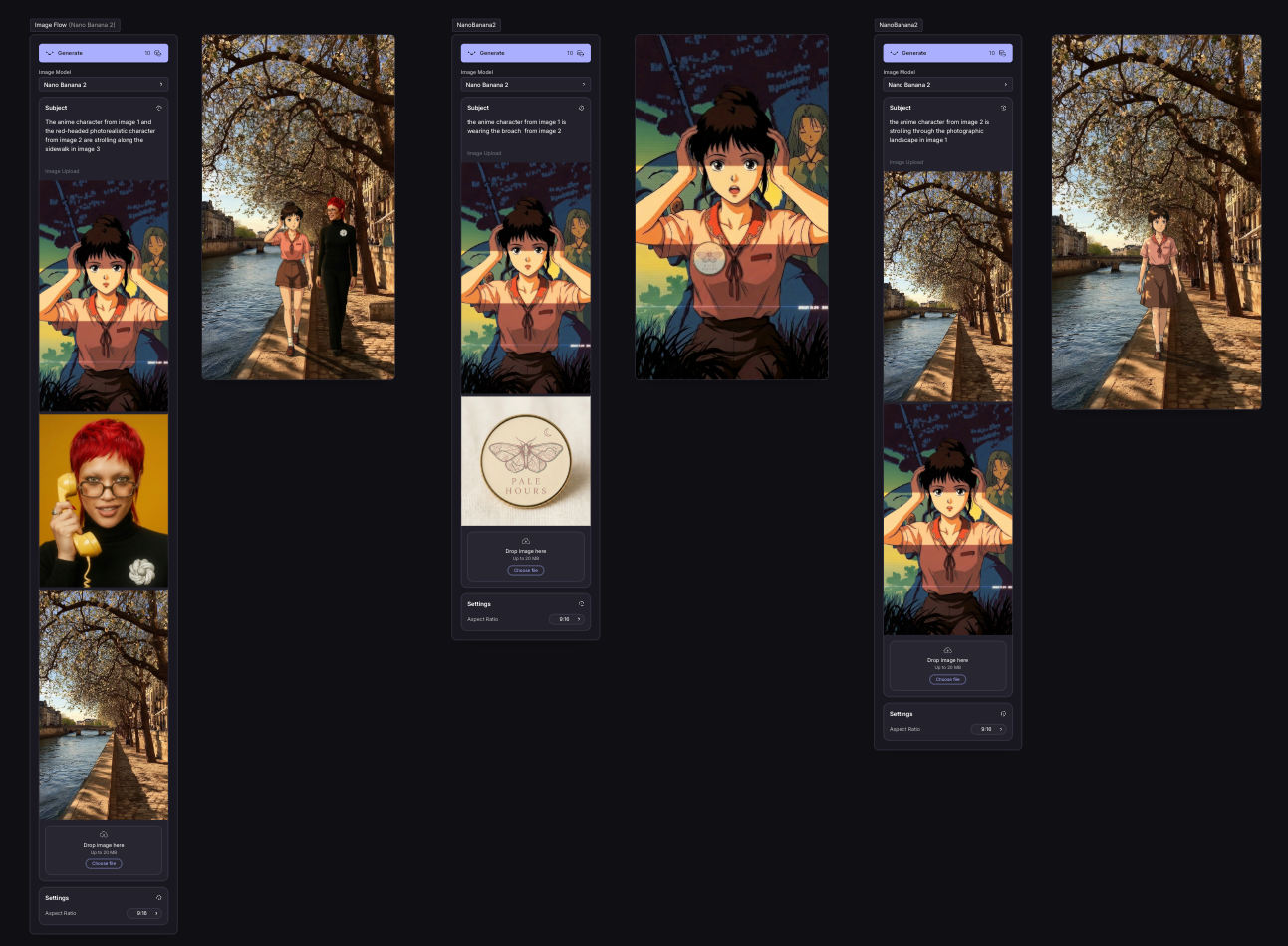
You can also edit images using the Canvas Create Image Flow. This allows up to 10 reference images, and control over the aspect ratio of the generated image. Select text to image from the image menu, or right click on the canvas and choose Create Image.
Choosing a Model
Nano Banana handles straightforward edits well. Removing an object, swapping a background, adjusting an expression. It's fast and reliable for single, clear changes.
Nano Banana 2 and Nano Banana Pro are built for more. If you're changing multiple elements in one prompt, working with complex compositions, or need precise prompt adherence, start with one of these.
To change models in the Image Editor or Create Image Flow click on the model name to open the model menu.
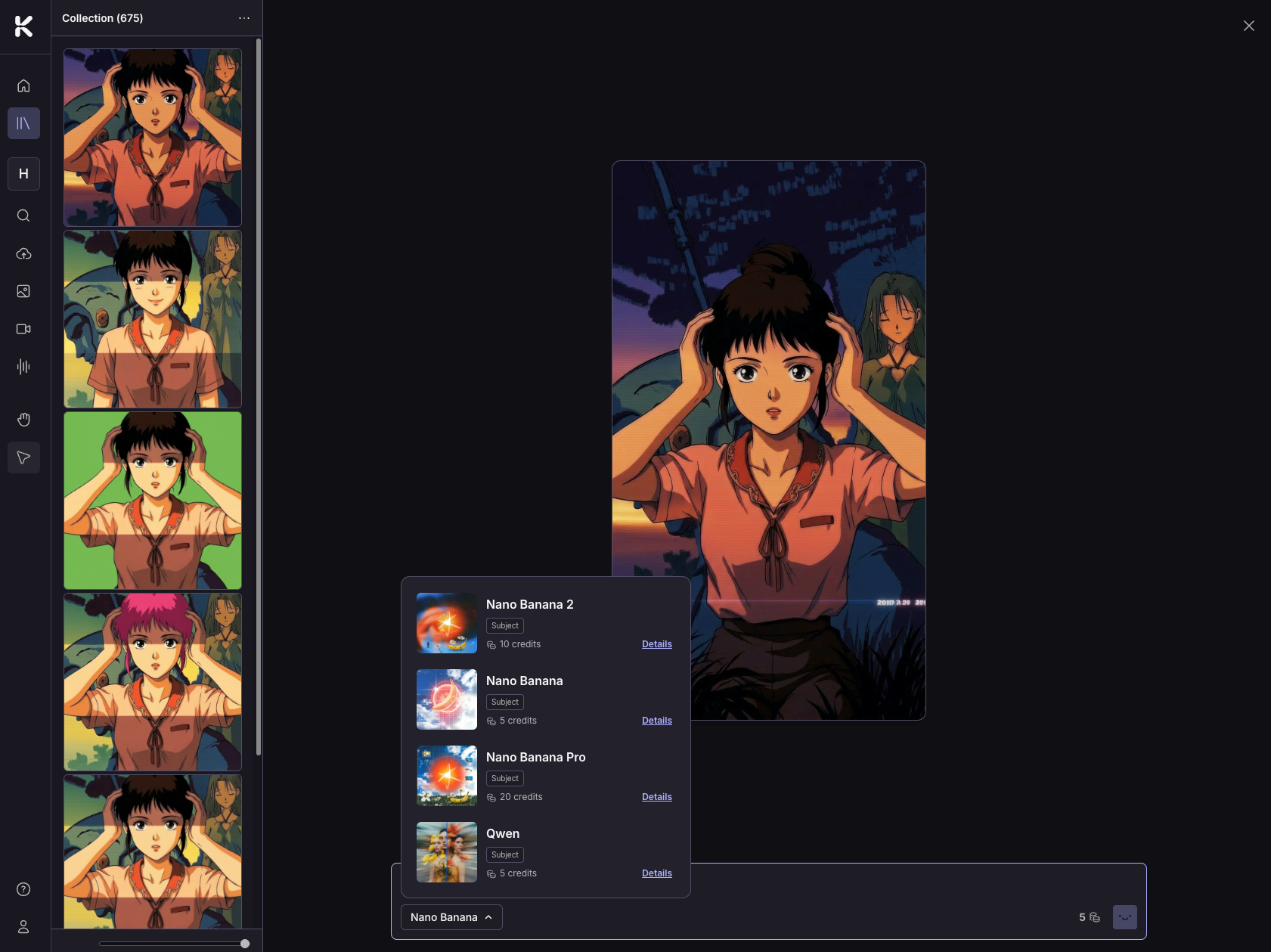
Generate Images From a Simple Prompt
You don't need a long, detailed prompt to get a strong result. Even with minimal direction, Nano Banana models generate solid compositions and render text clearly. Generate a few variations and compare.
Example prompt: An album cover for a punk rock band called "Nuclear Squirrel", album name "Radioactive Rampage"
Add text and styling
Example prompt: Album cover layout, artist name "Vera Cross" in bold sans-serif at top, album title "Lip Service" positioned right at bottom, film grain texture overlay, faded vignette edges, slightly desaturated midtones with deep red preserved, high contrast, square crop, gritty editorial aesthetic
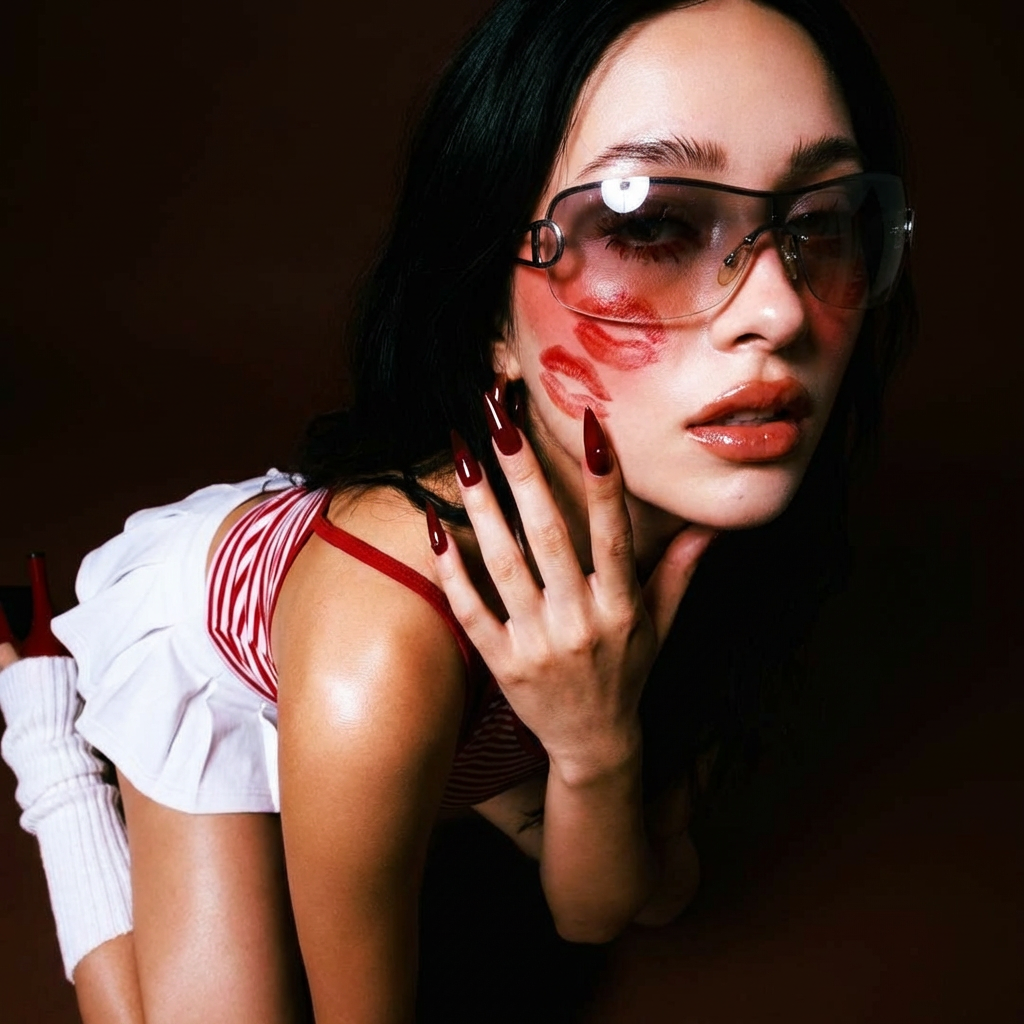
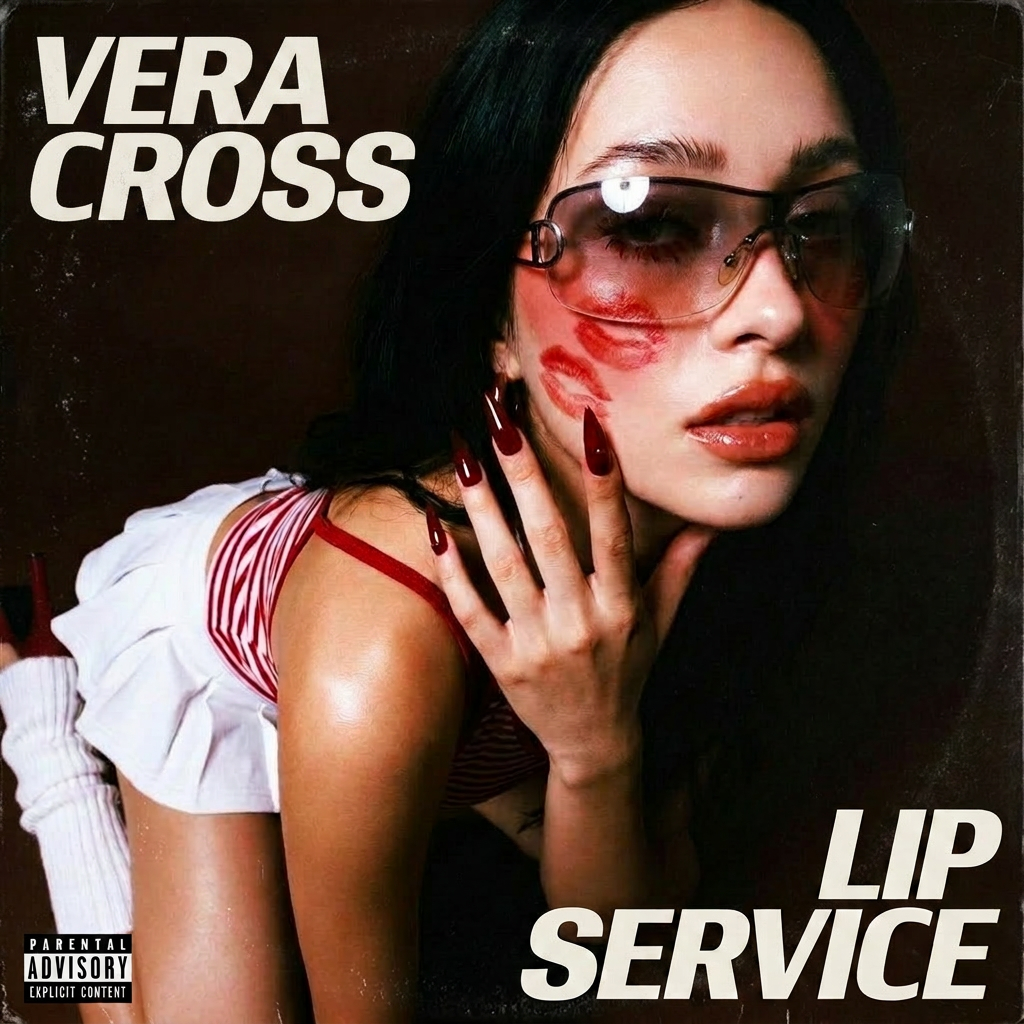
Resizing images
To change the aspect ratio of an existing image, work in a Create Image Flow on the canvas. Change the aspect ratio in settings before generating.
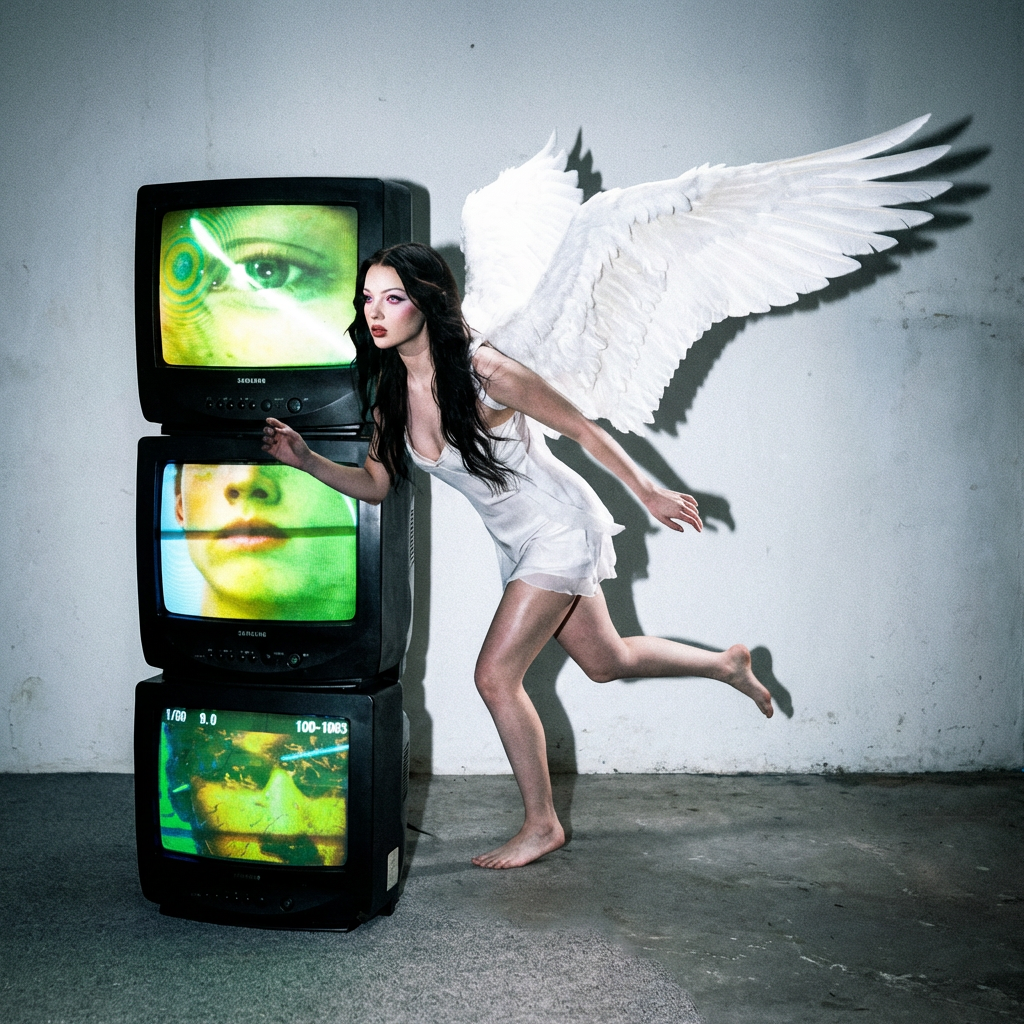
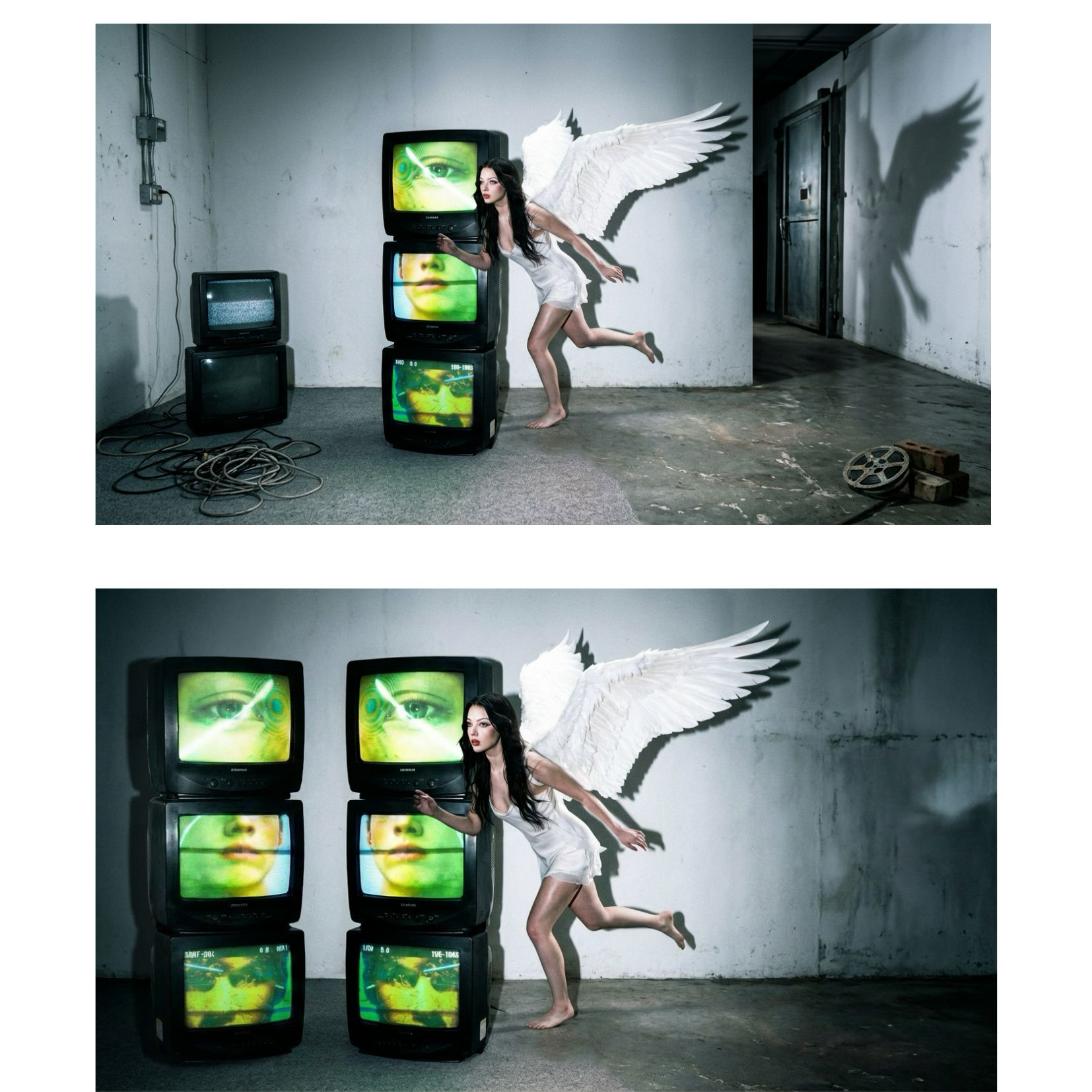
Example prompt: Expand horizontally
Need more control over the result? Add detail to the prompt.
Example prompt: Expand horizontally, maintain the clear background, keep the character centered and add a second stack of tvs to the left of the image
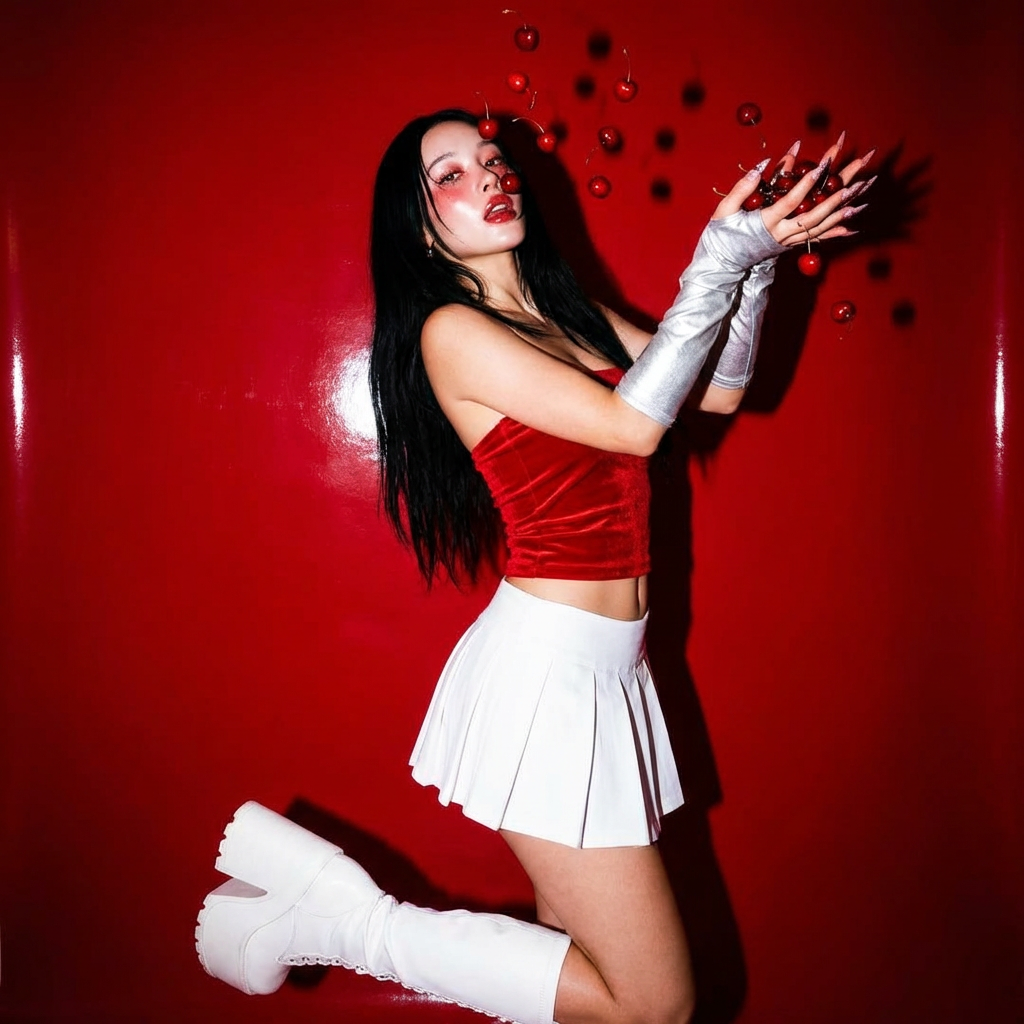
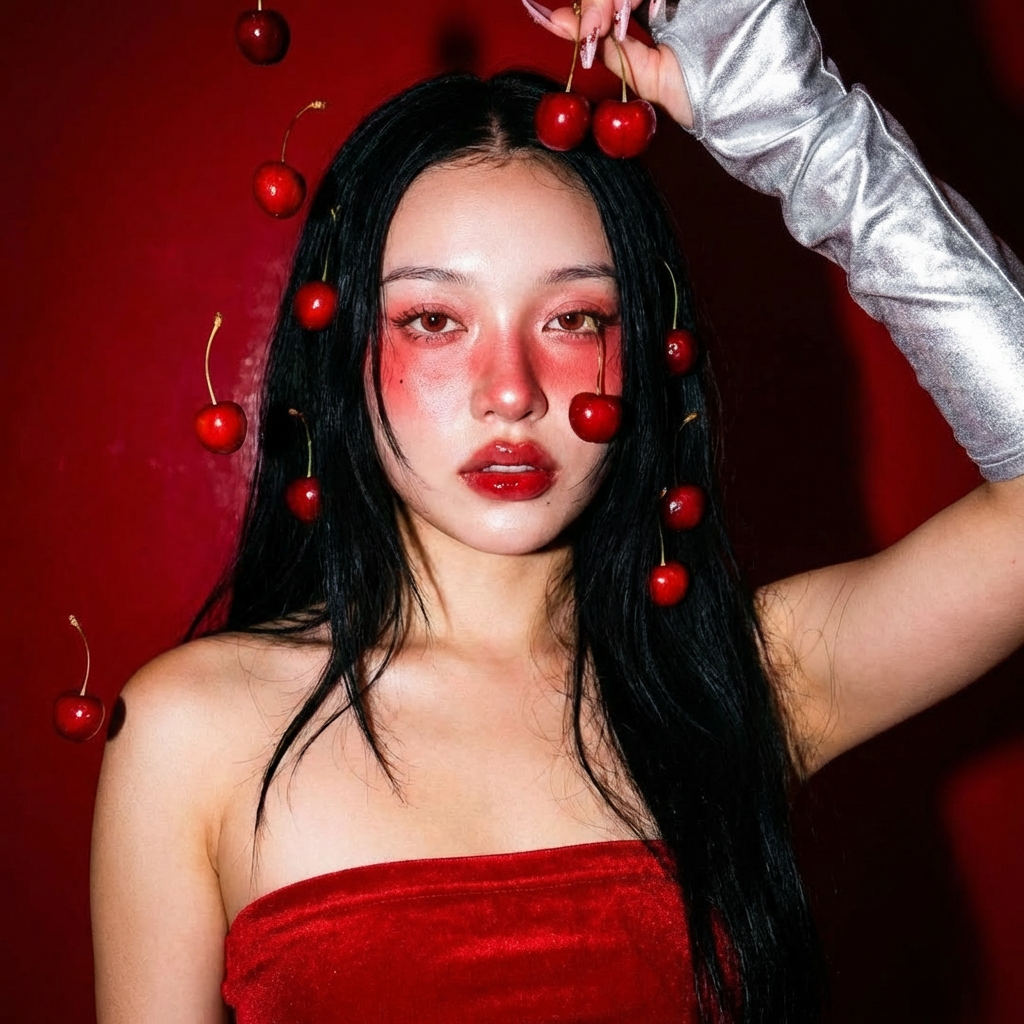
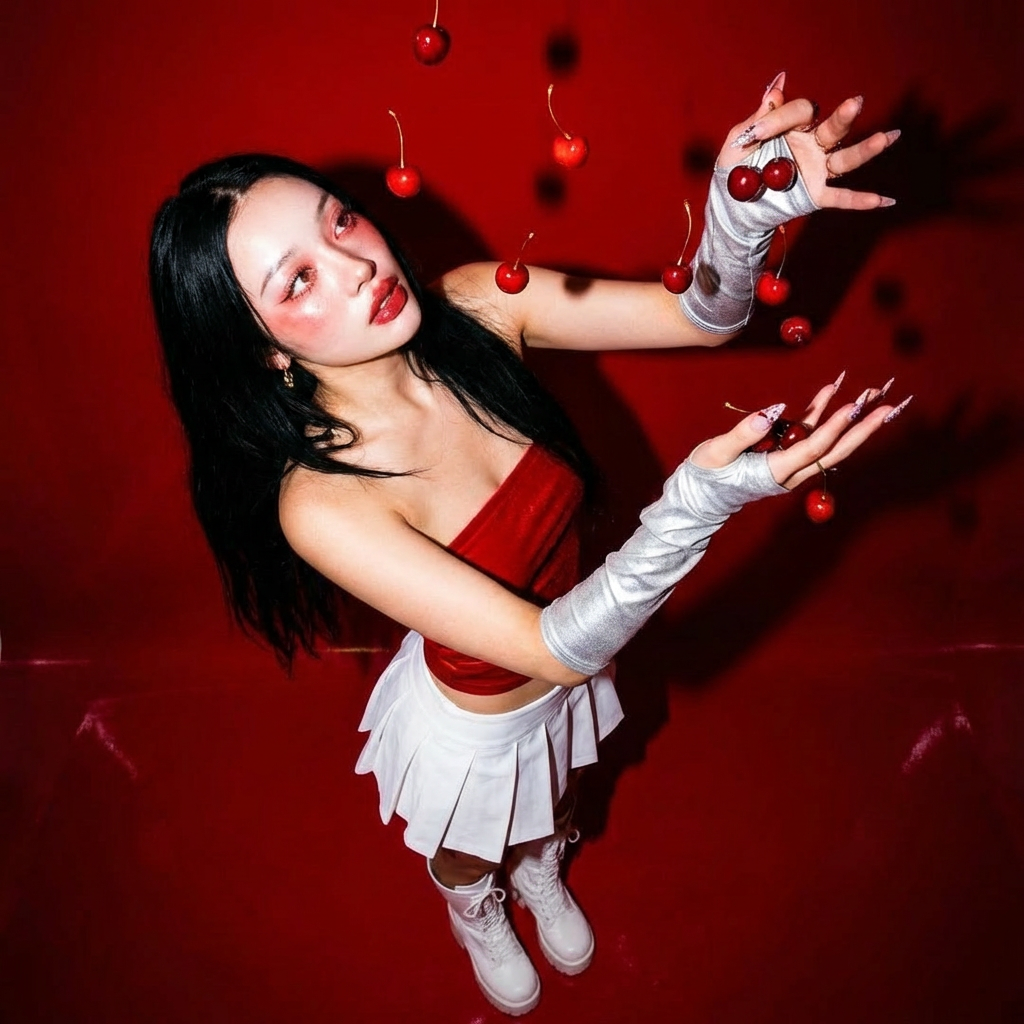
Generate multiple camera angles
Start with one image and use prompt changes to generate different views of the same subject. No need to reshoot or source new references.
Example prompts:
Close-up of the subject's face
High-angle view
Rear high-angle shot
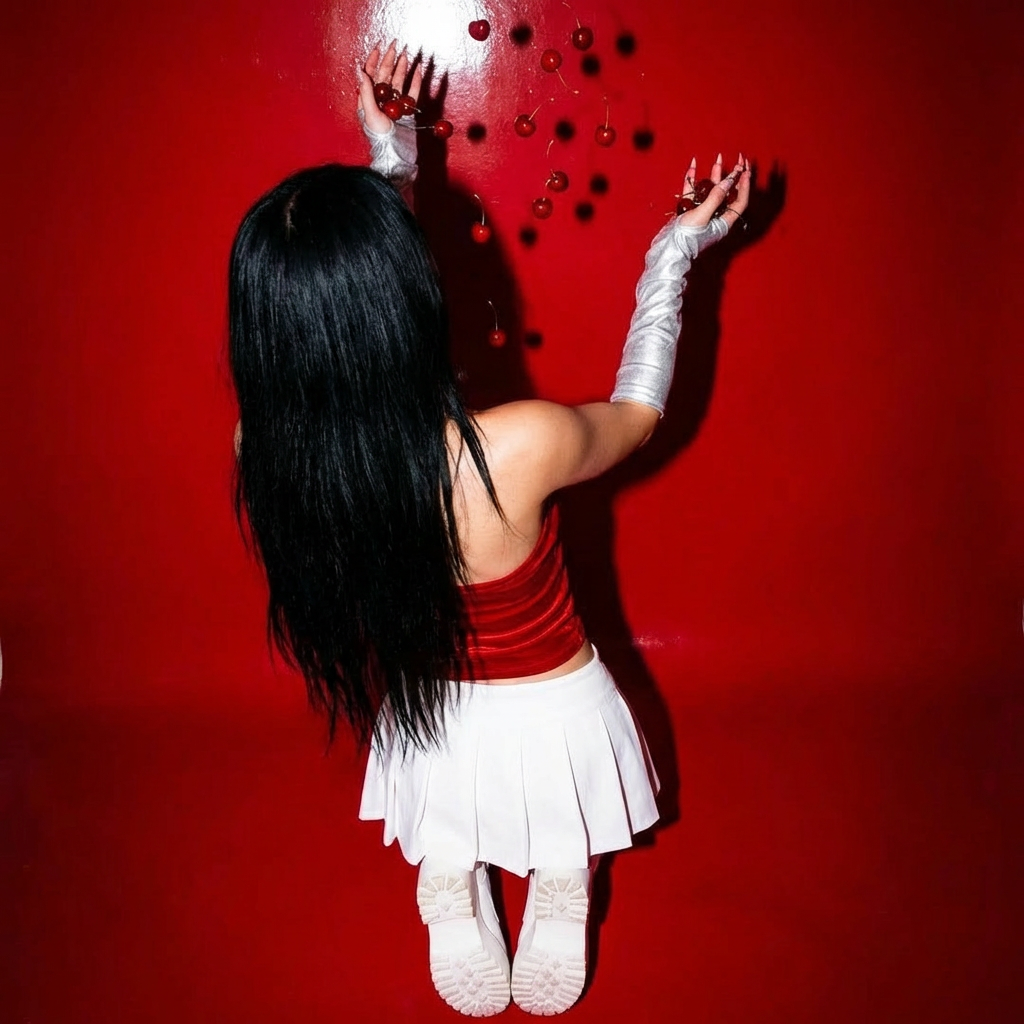
Change clothing or objects
Use your image and a text prompt in the Image Editor, or use multiple images in the Create Image Flow, and add in your original image and an image of the item you want to swap in. Describe the change clearly in the prompt.
Create Image Grids
Need to showcase variations or products? Prompt for a grid layout. It works well for lookbooks, merch previews, and concept boards.
Example prompt: create a 2x2 grid of the character in different poses
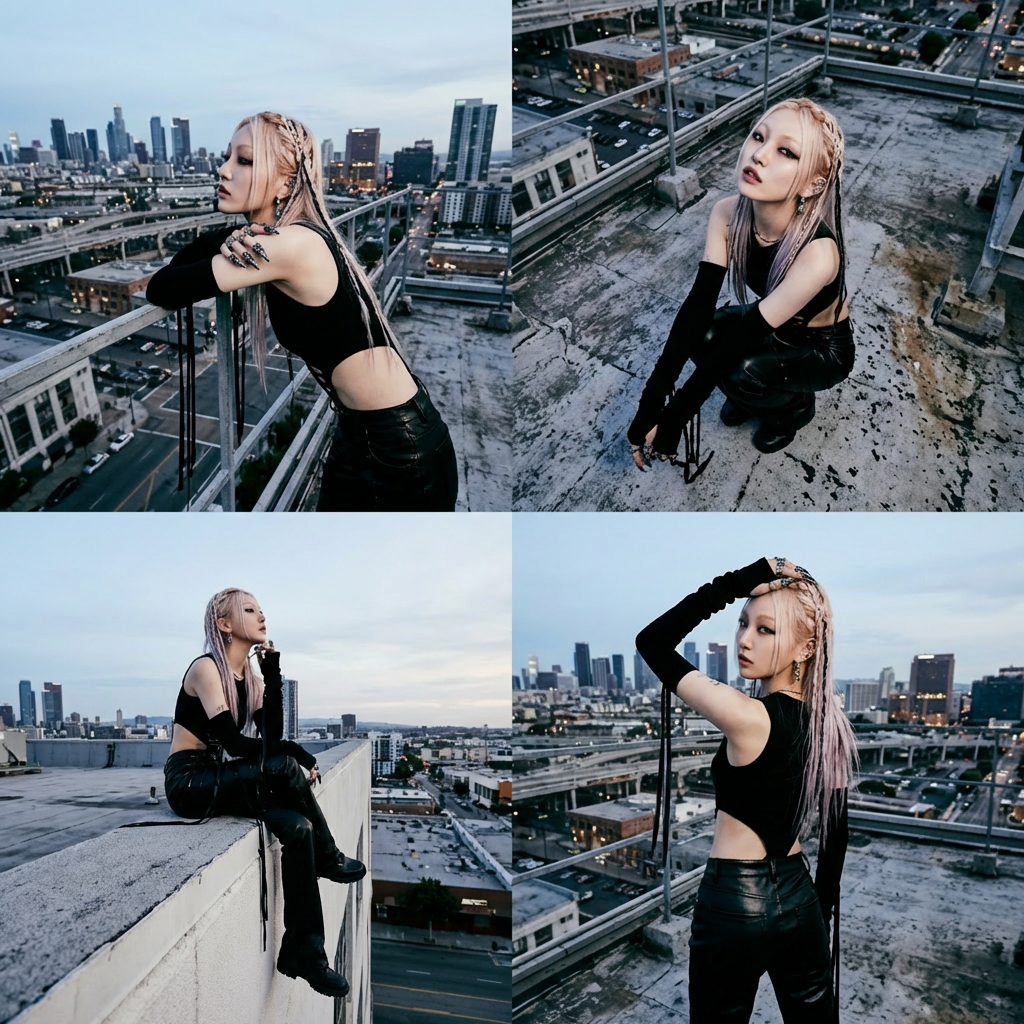
Combine Multiple Images and Styles
Nano Banana 2 and Nano Banana Pro handle complex combinations across multiple references. Mix subjects, backgrounds, and styles in a single prompt.
Edit and Remove Objects
Use prompts to clean up images, remove distractions, or adjust details without starting over.
Things you can prompt for:
Remove background objects
Adjust facial expressions
Replace or objects
Was this helpful?
Still need help? Ask the team