Create a Logo in Kaiber Canvas
A quick guide to creating a Logo in Canvas Got a brand that needs a logo? In Canvas you can generate one from a text prompt, or create one using an image you already have
Written By Christine Larsen
Last updated 5 months ago
Getting started
To create with text only, click Create Image in the Create Image menu and write a prompt describing the logo you want.
Click Create Image from Image to use an existing logo, sketch or reference image as your base.
Choose Nano Banana 2 for image logos or Recraft SVG for vectors.
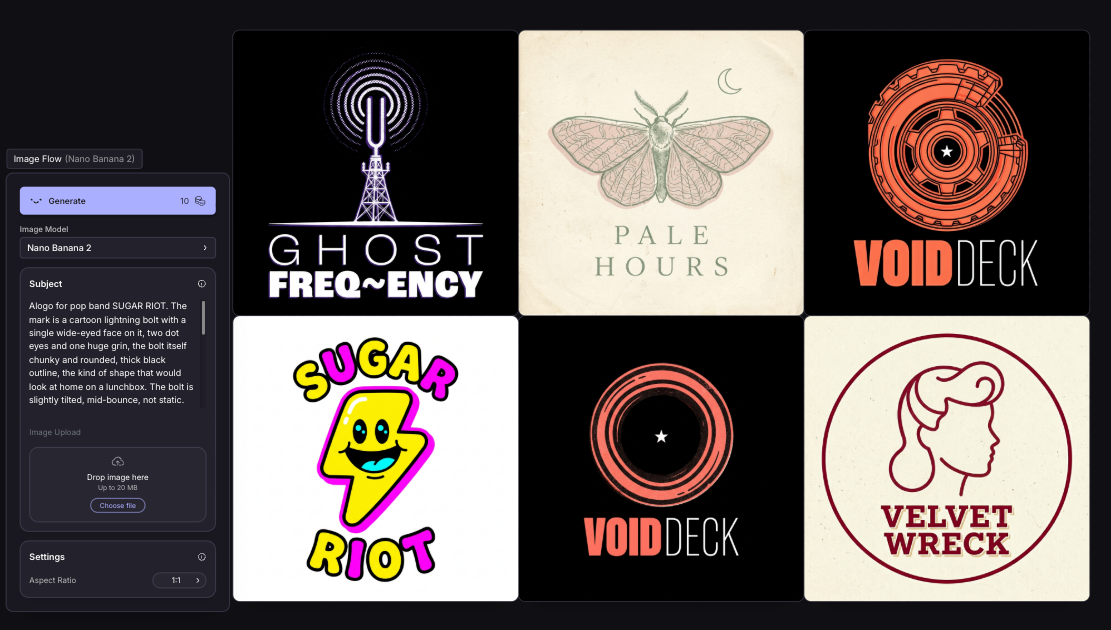
Generating logos with Recraft
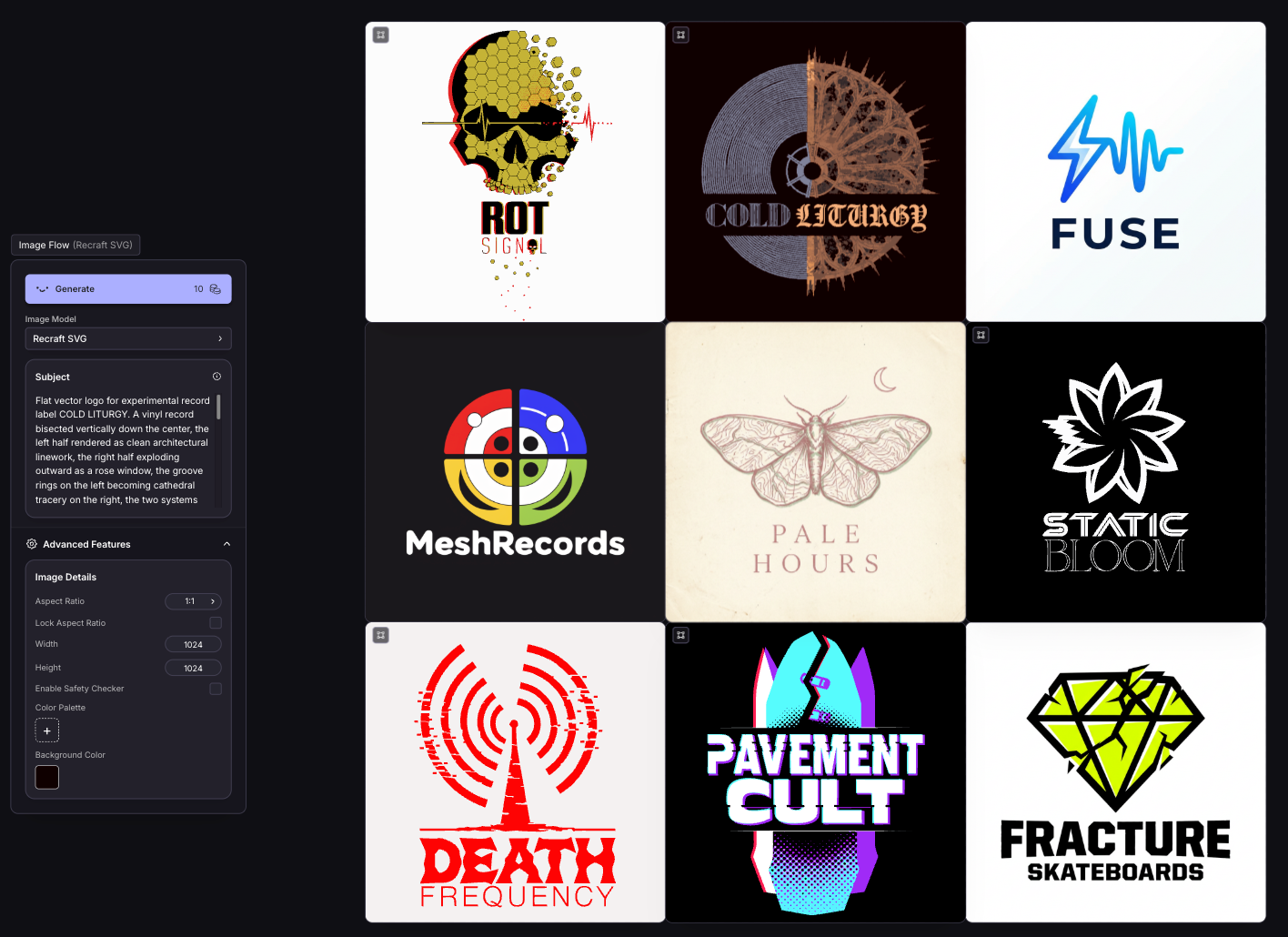
Recraft SVG logos are vectors, with clean edges that can be edited for color and scaled to any size.
Use the color palette options in Recraft to choose the exact color for your logo.
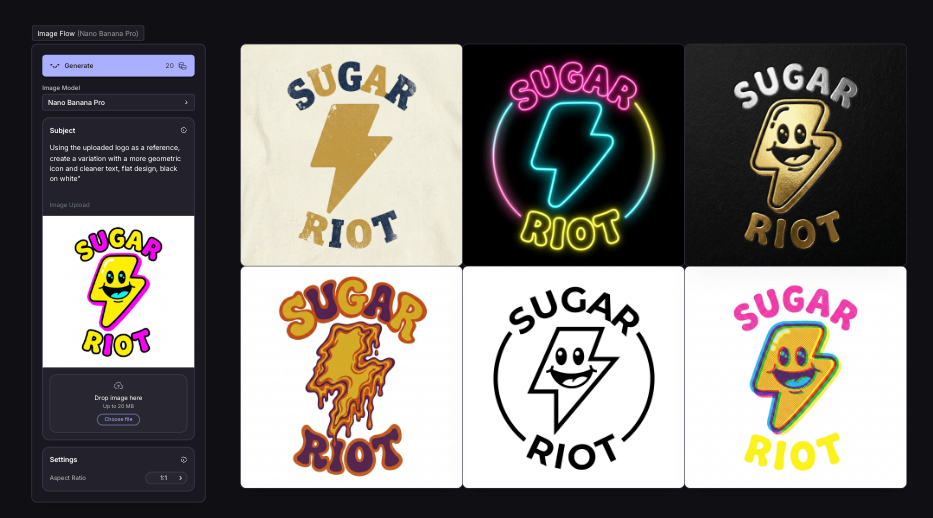
Starting from an image reference
Upload a reference and name it explicitly in your prompt so the model knows what to preserve:
"Using the uploaded logo as a reference, create a variation with a more geometric icon and cleaner text, flat design, black on white"
Get the core look right first, then adjust specific elements in follow-up prompts rather than describing everything at once.
Prompting for logos
The clearer your description, the more closely the output will match your design.
"Bold and professional" doesn't tell the model much. "A geometric mountain icon, two colors, flat design, white background" does.
A solid logo prompt covers:
The brand name if text is involved. Put it in quotes so the model knows it's text to generate, e.g. "Groundwork"
Style direction: flat, geometric, minimalist, bold
Color palette, or specify black and white
Background and format: "white background," "flat design," "clean edges"
Example:"Minimalist flat icon logo for a coffee brand called "Groundwork", geometric coffee cup icon, black and white, white background"
Always include background instructions in Nano Banana 2. Without it, it will create scenes. You can always restyle the logo later.
Stick to one or two visual elements. If your prompt describes more than two distinct components, cut one before generating.
Iterating in Canvas
You don't need to nail everything in one prompt. Generate a starting point, pick the strongest result, then change one or two things at a time. Follow-up prompts like these work well:
"Keep everything the same but change the icon to a circle"
"Make the palette warmer"
"Remove the background and make the text heavier"
Quick tips
Be specific with color. "Navy blue" and "warm terracotta" give the model more to work with than "blue"
Use negative prompts. "No shadows," "no gradients," "no text" cut unwanted additions without over-explaining
Generate a few variations first, then pick the strongest before refining
Related guides
Put your Logo on a Product in Kaiber Canvas
A quick guide on how to add your logo to t-shirts, caps, album covers, billboards or any product
Create Vector Art with Recraft SVG in Kaiber Canvas
Create brand-accurate vector art from a text prompt using Recraft SVG in Canvas
Was this helpful?
Still need help? Ask the team