Create Vector Art with Recraft SVG in Kaiber Canvas
Create brand-accurate vector art from a text prompt using Recraft SVG in Canvas
Written By Christine Larsen
Last updated 5 months ago
If you're building brand assets, icons, ads or packaging, SVG is the right format. They scale without losing quality, work across digital and print from a single file, and can be recolored easily in tools like Illustrator, Inksape and Figma.
Recraft SVG in Kaiber Canvas generates production-ready vector art from a text prompt.
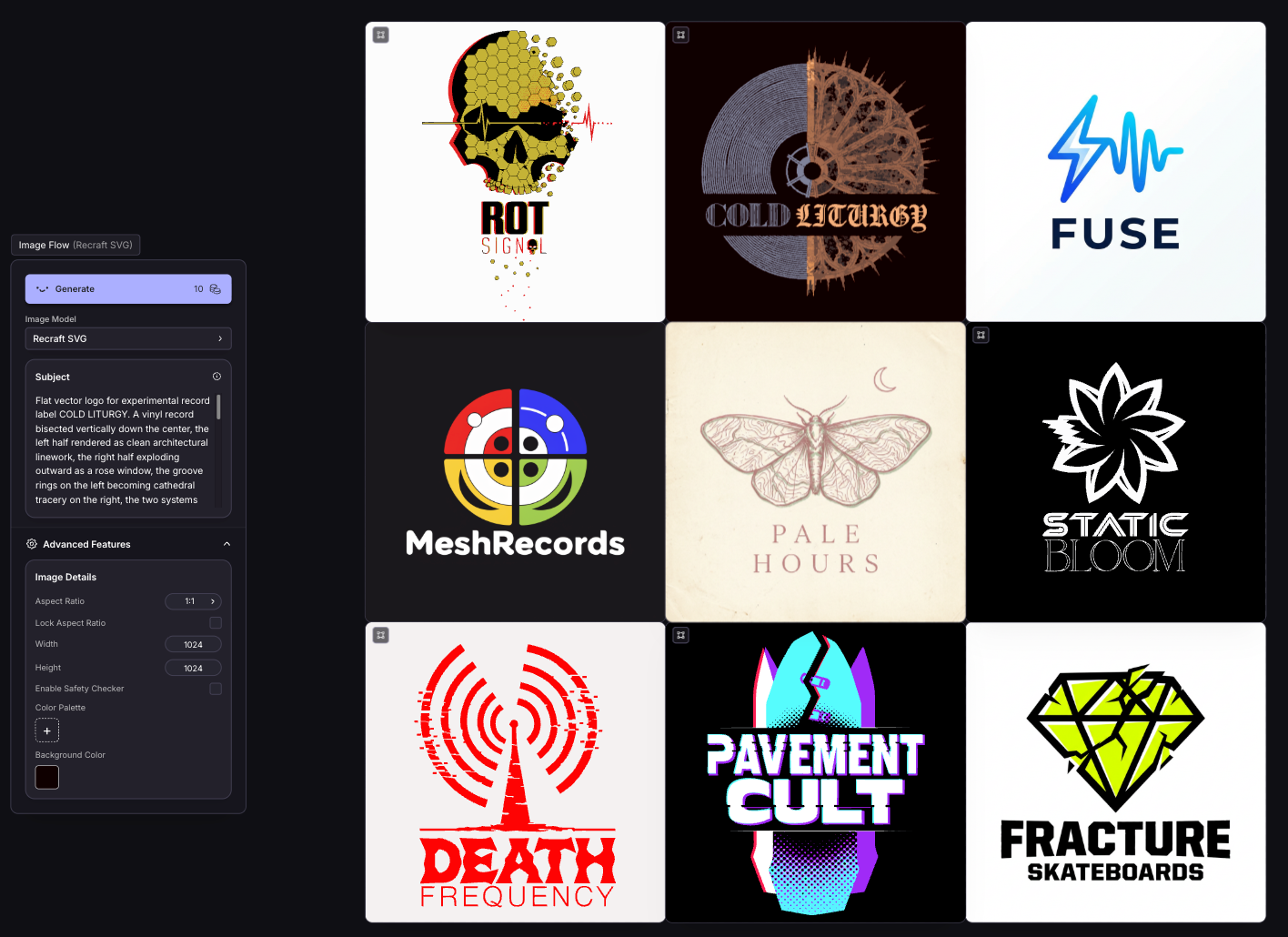
To access Recraft SVG in Canvas:
From the Home page, click Other Workflows and select Create with SVG
Or add a Create Image flow to the canvas and select Recraft SVG from the model menu
Setting up your generation
Describe what you want in your image in the subject box. Be specific about the style, elements and composition you're after.
Under Advanced Features you'll find:
Aspect Ratio: set this to match your intended output (default is 16:9)
Width and Height: fine-tune your dimensions if needed
Color Palette: add specific colors to keep your output on brand. Click the + to open the color picker and dial in your exact values
Background Color: set the background to match your needs
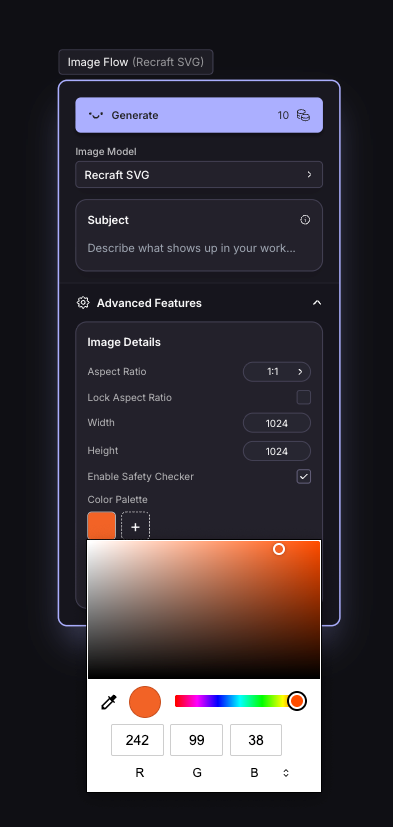
When you're happy with your settings, click Generate.

Tips for prompting in Recraft SVG
Keep it graphic, not photographic. SVG excels at clean lines, solid colours and minimal complexity. If your concept is atmospheric or detailed, simplify it before you prompt.
Use design language, not descriptive language. Terms like "flat colour," "minimalist" or "geometric" do more work than describing a mood. "Bold flat graphic illustration, black background, limited palette" is a stronger prompt than anything atmospheric.
Small word swaps make a big difference. "Geometric bear logo" and "abstract bear mark" produce meaningfully different results. Try single word changes before rewriting the whole prompt.
Treat the first result as a draft. Run a few variations and pick the strongest one. Adjust the colour palette from there.
Was this helpful?
Still need help? Ask the team