Creating Lyric and Caption Videos with Kaiber Cuts
A quick guide to creating lyric videos and videos with captions in Cuts
Written By Christine Larsen
Last updated About 1 month ago
Lyric videos and captioned clips are some of the most shareable content on social media.
Kaiber Cuts makes it easy. Create a video and toggle lyrics on for auto-synced lyrics or drop in a caption in Edit mode.
Here's how to add lyrics and captions to any video in Cuts.
First: Generate Your Video
Lyrics and captions are added in Edit mode, so you need to generate a Cuts video first. Here's the quick version:
From the Cuts homepage, click Make a video to start a new project or add to an existing one.
Upload or select your images or video clips.
Upload your track and trim it to the section you want.
Choose your aspect ratio and how many videos you want to create (1-10), then click Generate.
Once your videos are ready on the Project Page, you're set to add lyrics and captions.
How to Add Lyrics or Captions
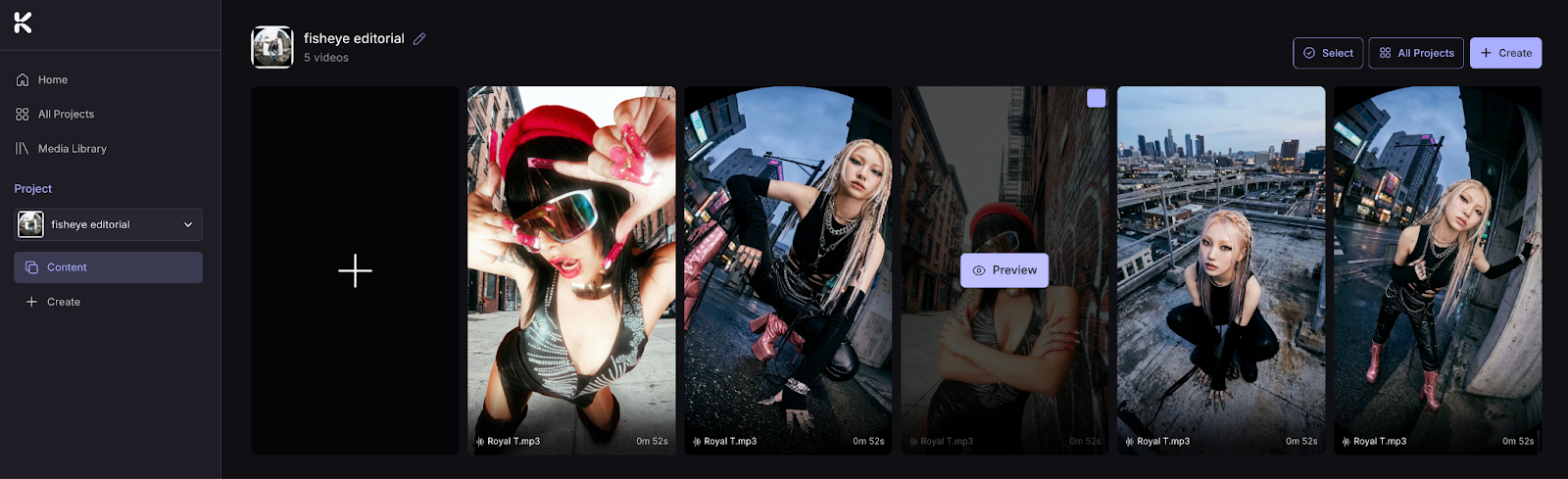
Step 1: Your generated video is in Project Page. Hover over it, and click Preview, to open it, then click Edit on the right side panel.
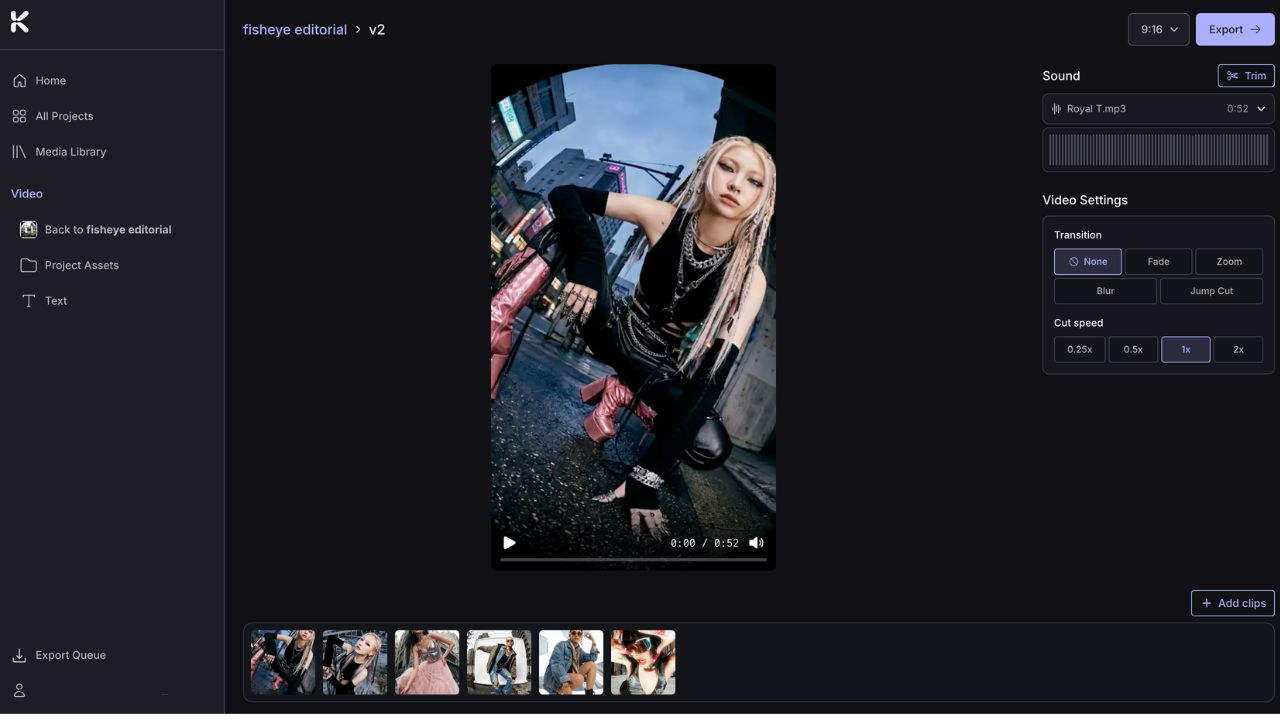
Step 2: Click the T button on the panel on the left. This opens the text options menu.
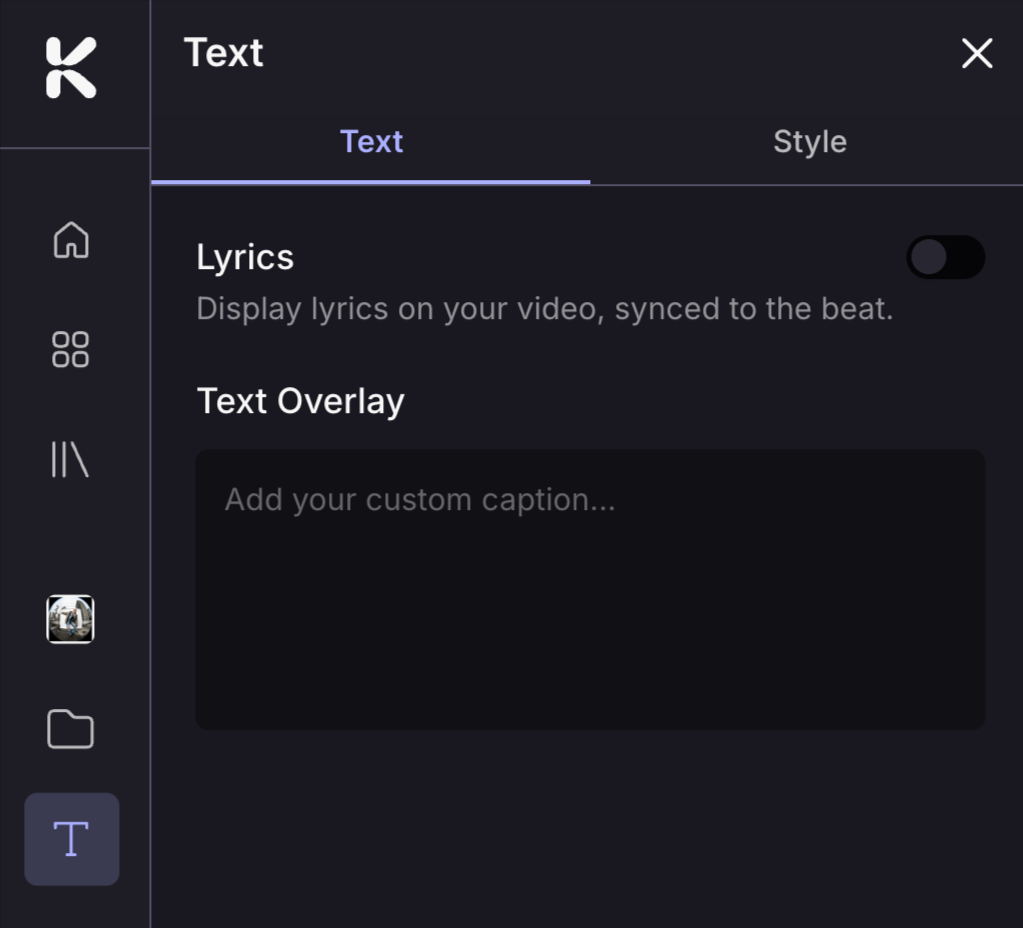
Step 3: Add lyrics or write a captions
For Auto-generated lyrics: Toggle Lyrics on. Cuts generates lyrics that sync automatically to your track. If you need to edit a lyric, click on it in the side panel.
For Custom captions: Click Text Overlay and type your caption.
Step 4: Style your text
Click Style to customize how your lyrics or captions look. You can adjust:
Font
Size
Text color
Line spacing
Capitalization
Background on/off
Background colour
Text outline
To reposition the text box, click and drag it. To resize it, grab a corner of the text box and pull it in or out.
Step 5: Export
Edits save automatically. Make any other edits to your video. When you're done, click Back to return to the Project Page, or click Export in the top right to save the video straight to your device.