Music Video Reference: Create a music video from your images
This guide covers how to create a music video with Kaiber’s Music Video Reference, using the workflow on mobile and desktop.
Written By Kaiber Support
Last updated 1 day ago
What is Music Video Reference?
Music Video Reference is a new way to approach music video creation.
Multiple image inputs let you set the location, characters and other elements you want to appear. The video is built around what your reference images, prompt and music.
Upload up to 9 images, write one prompt that says what each one is, and add a song. Music Video Reference plans every clip to its part of the track.
Access the workflow
Open Music Video Reference in the Kaiber Dashboard Workflows, on mobile or desktop.
What you need
What kind of images to use?
Choose images that match what you want to see in the video
photographs
Ai generated images
character sheets
reference sheets
places
people
other elements, such as products, vehicles, styles, effects, backgrounds
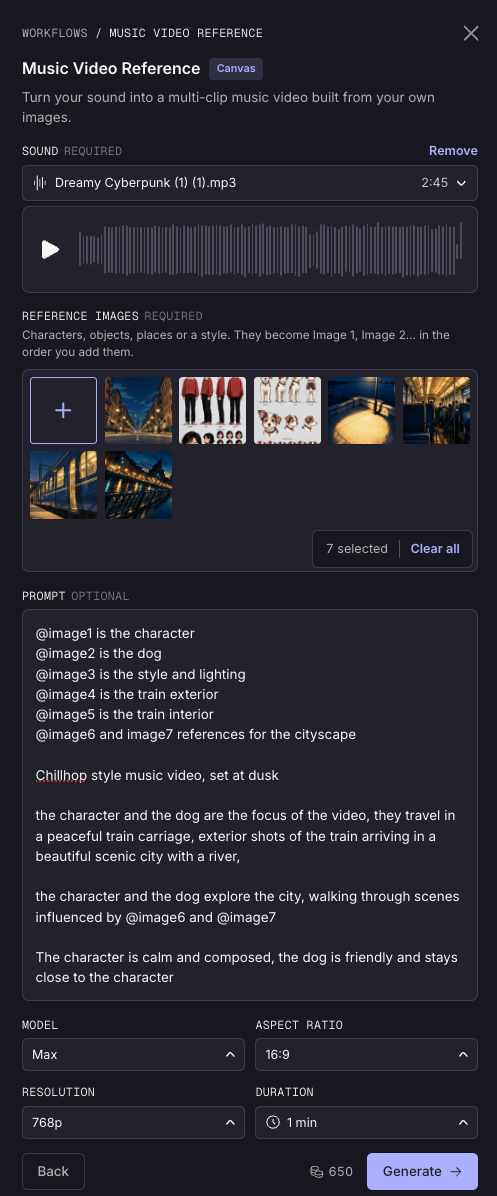
How to write the prompt
Say who or what each image is, then what happens.
@Image1 is the singer, @Image2 is her red vintage car and @Image3 is the desert motel. She drives through the desert at sunset and dances in the motel car park under neon signs.
Prompt:
image1 is the character
image2 is the dog
image3 is the style and lighting
image4 is the train exterior
image5 is the train interior
image6 and image7 references for the cityscapeChillhop style music video, set at dusk
the character and the dog are the focus of the video, they travel in a peaceful train carriage, exterior shots of the train arriving in a beautiful scenic city with a river,
the character and the dog explore the city, walking through scenes influenced by @image6 and @image7
The character is calm and composed, the dog is friendly and stays close to the character
Your options
Length
Choose the duration of your video. The video starts at the beginning of your song. If you want the video to being in a different part of the song trim it before uploading.
30 sec
1–3 min
2 minute
3 minute
4 minute
Resolution: 480P, 768P or 1080P. Higher costs more.
Aspect ratio:
Choose the aspect ratio of the video you want to create
16:9 (default) for landscape videos, Youtube size
9:16 for vertical
1:1
4:3
3:4
21:9
adaptive to follow your images.
Generate your music video
Once your images, song and prompt are set, click Generate to create your video.
Tips for better results
Put your main character first
Use clear images with one subject each, well lit, with faces visible. A character sheet works well for this.
Reference every image in your prompt. Any image you leave out still gets a role, just one Music Video Reference assigns on its own.
Stick to one main character plus a few supporting images. That's where results stay most consistent.
Characters don't sing or lip-sync. The song is interpreted through movement and character expression
Want a character in a different art style? Use Restyle in Music Video Montage or Music Video Sequence instead. Or restyle your images before uploading them to the workflow.
FAQs
Does the order I upload images in matter?
Yes. Images are numbered by upload order, Image 1, Image 2, and so on, and that's how you'll refer to them in your prompt. Upload your main character first.
Do I have to write a prompt?
No. The prompt is optional. Leave it blank and Music Video Reference builds the video from your song and images on its own.
Will my characters lip-sync to the song?
No. Characters don't sing or lip-sync in Music Video Reference. They perform the song through movement, expression and dance instead.
What's the difference between Max, Turbo and Lite?
They control how many of your clips are unique versus repeated. Max gives you all unique clips for the most variety, Turbo repeats around 20% of the clips in your video and Lite repeats 40% of your clips for the lowest cost.
Other resources
Was this helpful?
Still need help? Ask the team