Change Log

Follow new updates and improvements to Kaiber.

Introducing Lyric Video Workflow
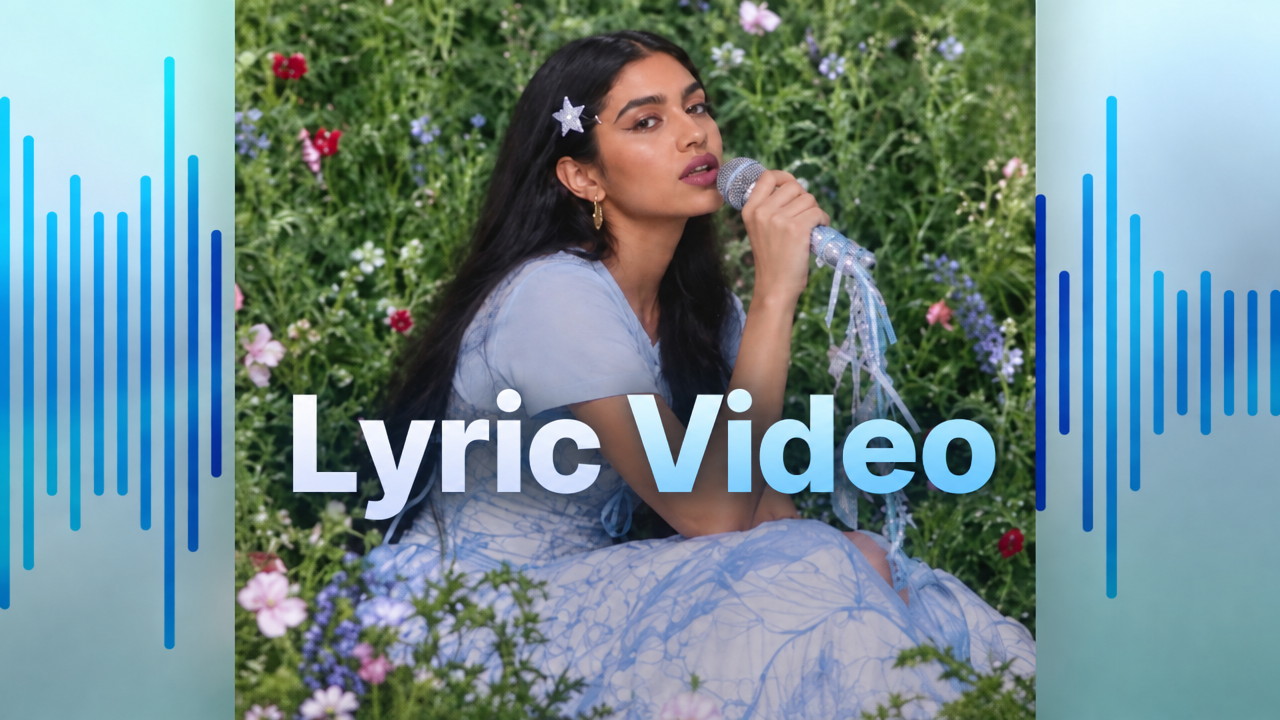
Lyric Video is a new Kaiber-developed workflow It analyses your song and creates a music video with timed lyrics built right into the shots.

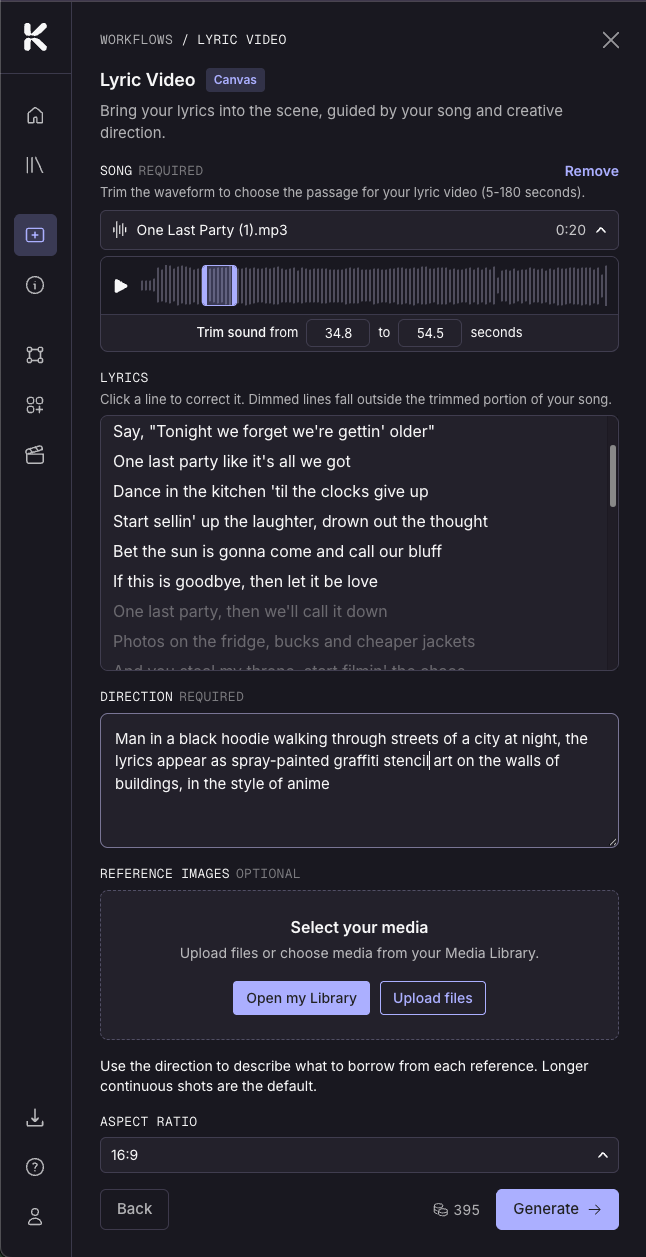
Access: Open Lyric Video in the Dashboard Workflows.

Lyrics: automatically transcribed from your audio. Check them over and make any edits before you generate.

Trim your track: select just the section you want to use.

Reference image: add an optional image to guide the content and style of your video.

Description: describe what you want to see and how your lyrics should appear in the scene. Your words become part of the world of the video, painted on walls, formed in the sky, and more.

Sample prompts:
"A station departure board flips through the lyrics in long continuous shots."
"A man walks through city streets, the lyrics are spray-painted in graffiti on the walls of buildings."

Guide How to Create Lyric Videos in Kaiber
New

GPT Image 2.5 live in Kaiber Canvas

OpenAI's newest image model, now available in Kaiber.

GPT Image 2.5 upgrades GPT Image 2 for text to image and precise image editing with strong preservation of faces, products, details and style from your reference images.

Two versions to choose from:

  • Flare: the fast option. Great for quick iterations, everyday generations, and testing ideas.

  • Sunburst: the precision option. Slower, but built for polished, detailed work where every edit needs to land exactly.

Access: Add a Create Image Flow to the Canvas and choose GPT Image from the menu. Open Advanced Features at the bottom of the flow to toggle between Flare or Sunburst

New

MiniMax H3 models live in Kaiber Canvas

MiniMax's newest video models are now available in Canvas. Generate 5 to 15 second clips with native audio.

Two modes to choose from:

Generate mode: text to video, or animate from a start keyframe with an optional end keyframe.

Reference mode: bring in image, video, and audio references to guide your generation (H3 and H3 Max only).

  • MiniMax H3: the full-featured model. Mix up to 9 images, 3 video clips, and 3 audio tracks as references, render at up to 2K, and get strong text and logo rendering.

  • MiniMax H3 Max: a tuned version of H3 with sharper aesthetics and tighter prompt adherence. Currently ranked #1 for image to video. Great for polished finals from a prompt or a still.

  • MiniMax H3 Max Turbo: the fastest, cheapest option, generate mode only, at up to 1080p. Ideal for drafting and testing ideas quickly.

Access: Add a Create Video Flow to the Canvas and choose MiniMax from the menu. Open Advanced Features at the bottom of the flow and select H3, H3 Max, or H3 Max Turbo.

New

Earlier updates