Create a Music Video with Music Video Montage 2.0 in Kaiber
This guide walks through how to create music videos with Kaiber’s Music Video Montage 2.0 workflow.
Written By Kaiber Support
Last updated About 2 hours ago
What is Music Video Montage
Music Video Montage is an intelligent workflow that analyzes your track for mood, genre and tempo, and uses this along with your description to create a finished music video.
The video is rendered in one visual style, held in a single moment and brought to life across a montage of clips that feel like they belong together.
The 2.0 update keeps the same clip format as the original Music Video Montage with improved character/subject, location and style consistency throughout the video.
Keeping a character, scene and style locked in
Music Video Montage 2.0 creates a set of reference sheets for subject/character, clothing and location. Every clip is generated from those sheets. This means clothing stays consistent, faces don’t change from one clip to the next, and increases style hold throughout the video.
Those reference sheets save to the media library alongside the finished video and its individual clips. Need to swap a clip from your video? Use the reference sheets and you’ll keep the same character in the new clips.
Finding and opening the workflow
on the Workflows page of your Kaiber dashboard, on mobile and desktop
in the Create Video flow node on Canvas
Setting up it up
Add a track from the media library or upload one to get started. Then adjust the settings in the workflow.
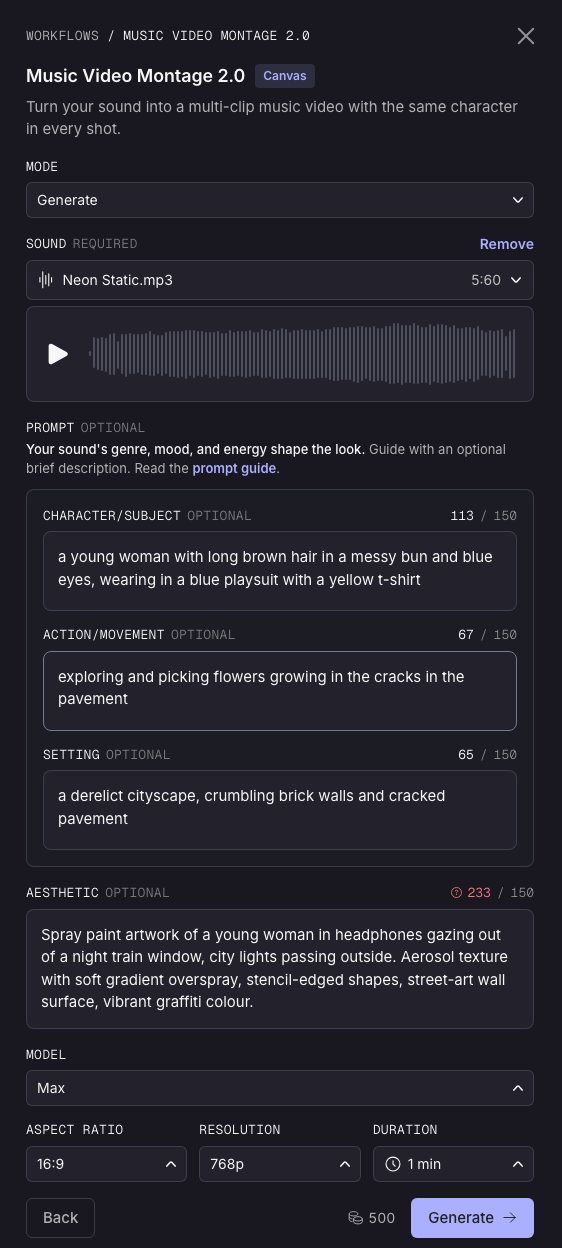
Mode
Generate: create from the audio and a written description alone
Reference: add an image to guide the content and aesthetic of your video
Restyle:: add an image to guide the content, and restyle it to fit the track
Then there's the model, which comes down to how many clips get reused. Max generates every clip fresh. Turbo reuses about a fifth of them. Lite reuses closer to 40%. Reusing clips costs fewer credits, so Turbo or Lite are worth reaching for on a longer video or a tighter budget.
Model
The model determines the cost and how many clips will be repeated throughout your video. If you choose Turbo or Lite you will see some repeated clips throughout the video.
Max: All unique clips are used in the video
Turbo: 20% of your clips will appear twice in the video
Lite: 40% of your clips will appear twice in the video
Reusing clips costs fewer credits, so Turbo or Lite are worth reaching for on a longer video or a tighter budget.
Length, aspect ratio and resolution
Length: 30 seconds, 1, 2 or 3 minutes
Aspect ratio: 16:9, 9:16, 1:1, 3:4 or 4:3
Resolution: 540, 720 or 1080p
Restyle mode
Prompt
Subject: a woman with long dark hair in an up-do wearing a flowing yellow dress
Setting: a 70s style room with orange walls and floor, sun streaking in through the windows
Action: playing records, enjoying the sunshine
Aesthetic: 1970s nostalgia
What makes a good reference image?
Music Video Montage supports a single image upload in Restyle and Reference mode. If you use an image it will heavily influence your video.
A good reference image contains:
The setting for your video (most important for Reference mode)
The characters in your video (if you have 2 characters or more characters include them all)
Clear character faces
Characters wearing the clothing you want to see in the video
In Reference mode the image should be in the same style as you want to see in the final video.
Has the same aspect ratio as the video (for best results)
Music Video Montage does not support:
Scene instructions or annotations in the image
Multiple image inputs
To edit an image use the Image Edit workflow
What makes a good prompt?
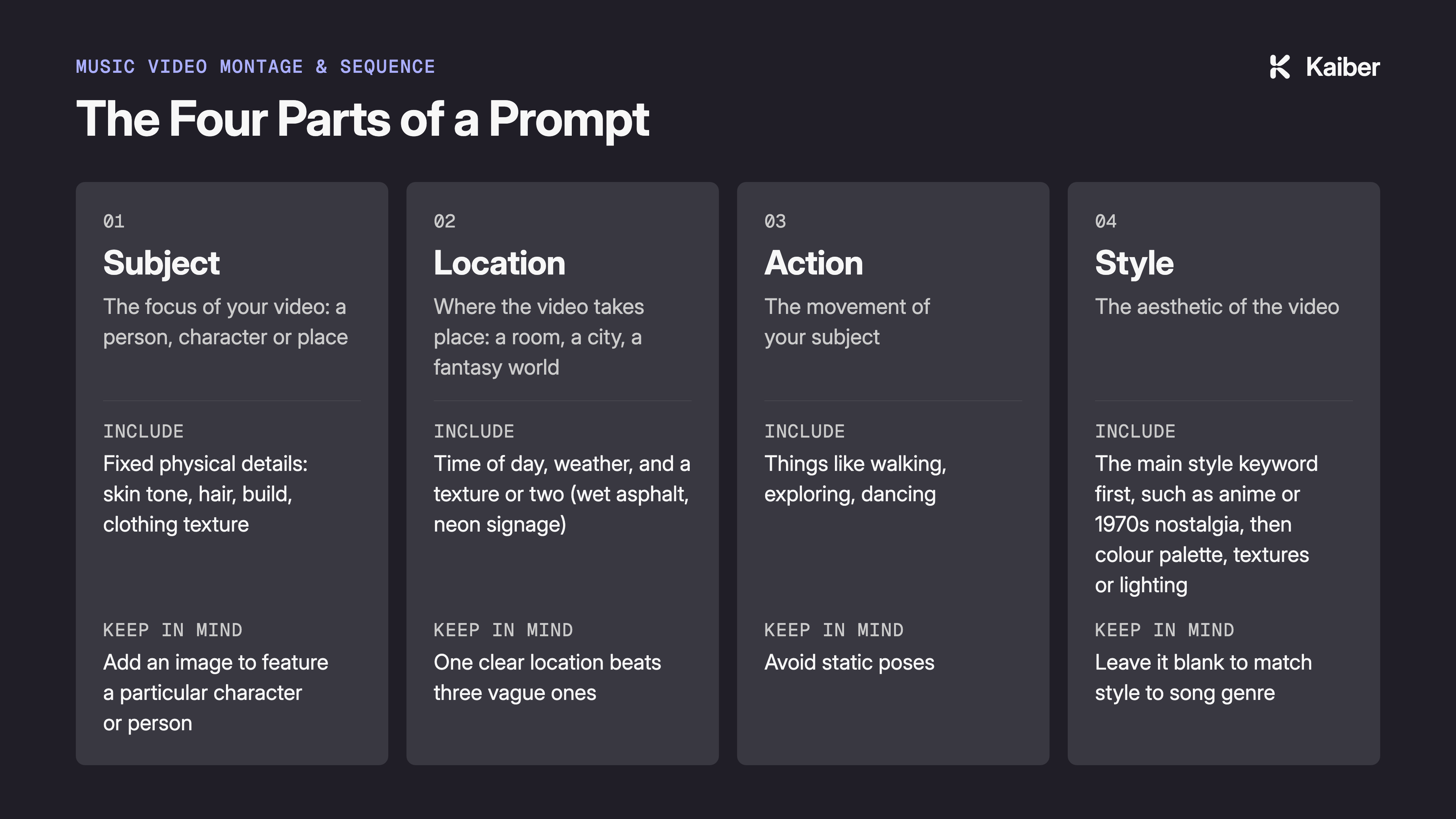
Stick to four things
Subject/Character: visually describe who or what the video is about
example: a man aged 30 with fair skin and short brown hair wearing a faded black t-shirt and jeansLocation: where that subject exists, and what it should look like
Example: a quiet, lonely stretch of road in a scenic, dry red-sand desert at sunsetAction: visually describe what the subject/character is doing in the video
Example: Walking along the road with a peaceful expressionAesthetic: The visual style of your video
Example: Photorealism, 1980s nostalgia
Avoid:
Sequencing words like "then" or "building to." Music Video Montage 2.0works from one moment, not a chain of them.
Camera instructions. Panning, zooming and cutting are automatic.
Timestamps or linking visuals to the lyrics
Text or lyric overlays (use Lyric Video for this)
Lipsync instructions
More than one main subject. Two competing characters or ideas is a job for two separate videos, stitched together in the Timeline Editor.
Generate mode
Prompt
Subject: a teenage boy with brown hair wearing a black hoodie and scuffed jeans, black converse
Setting: a futuristic cityscape
Action: skateboarding
Aesthetic: handdrawn anime cyberpunk
Tip: Generate a short, low-resolution video first to see how a prompt reads against the track before committing credits to a longer version.
Other resources
Was this helpful?
Still need help? Ask the team