Getting started with Lip Sync in Kaiber Canvas
Make a character sing or speak with your audio with Image or Video Lip Sync
Written By Christine Larsen
Last updated 5 months ago
Opening Lip Sync
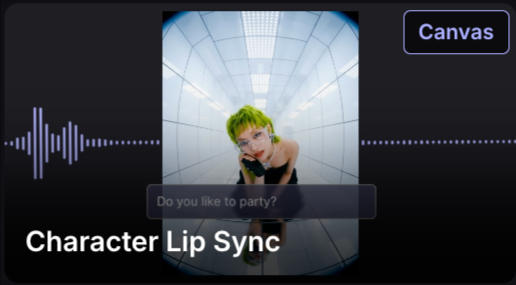
From the Home page click Character Lip Sync to open Image Lip Sync
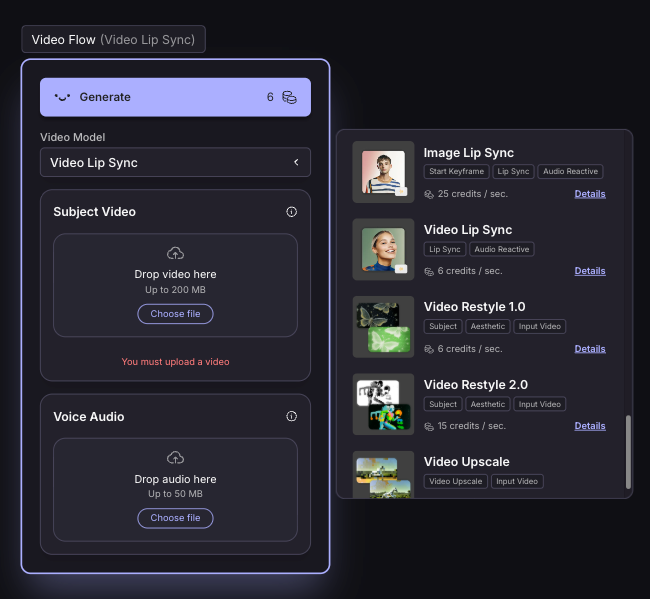
In. the Canvas click Create Video and use the model menu to select Image Lip Sync or Video Lip Sync.
Image Lip Sync: If you are starting with an image and audio.
Video Lip Sync: If you are starting with a video and audio.
For best Lip Sync results
Use a forward-facing shot of a single person’s face
Consider camera distance
If the character is too far from the camera, lip movement may not come through clearly
If the character is too close, facial expressions may appear distorted.
Choose audio with clear speech and no cross-talk
For clearer movement use AudioShake Stem Separator to extract the vocals from your audio. Add the full audio back in edit
Test outputs with a short section of audio before creating a longer video
Image Lip Sync
Create a lip sync video by adding audio to an image of a person.
Length: Will match audio up to 300 seconds.
To use Image Lip Sync:
In the Create Video Flow menu select Image Lip Sync
Add your image and audio to the Flow
Click the generate button to create your video
In the Advanced settings choose between 720p and 480p
Video Lip Sync
Create a lip sync video by adding audio to a video of a person.
Length: Will match your audio up to 30 seconds. If audio is longer than video, the video will loop.
To use Video Lip Sync:
In the Create Video Flow select Video Lip Sync
Add your video and audio to the Flow
Choose between
Click the generate button to create your video
Testing with short audio clips to refine your settings before generating longer videos is recommended.
Was this helpful?
Still need help? Ask the team