Creating Videos with Dialogue and Sound in Kaiber Canvas
A guide to how to select models and craft prompts to create videos with characters who talk, synced audio and soundscapes.
Written By Christine Larsen
Last updated 5 months ago
Generating a video with sound
To generate a video with sound or speech in Canvas use Veo 3.1, Wan 2.5, or Kling 3.0.

In Canvas:
Click “Create Video” to add a Create Video Flow to the canvas
Click the model name to open the model menu
Choose Veo 3.1 or Veo 3.1 start/end frame (if you are using keyframes)
Veo 3.1 is best for generating dialogue, chose Kling 3.0 for multi-shot clips and stronger prompt adherence or Wan 2.5 for lower content moderation
Type or paste your prompt in the subject field
Drag and drop your reference image/s into the image upload field
Check the advanced settings for model variations and generation options
Click generate to make your video
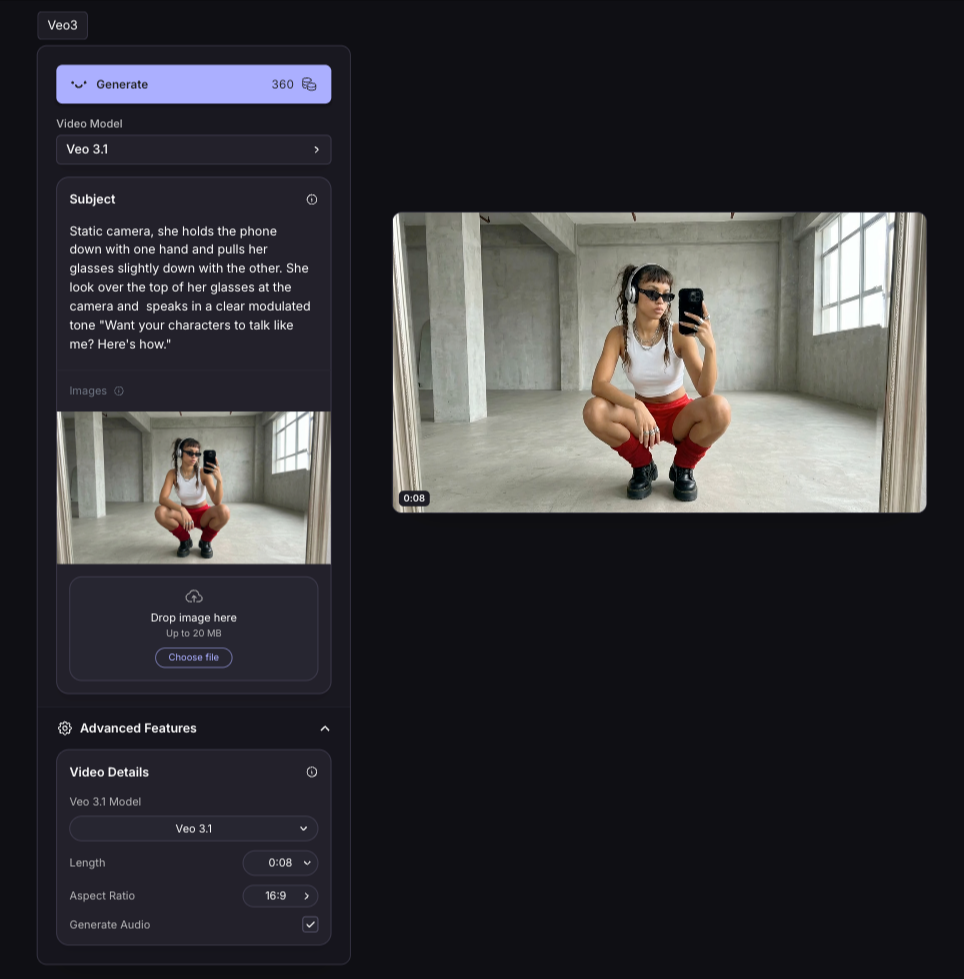
Tips for ensuring clean character animation, clear speech, and layered sound.
Before you animate, create an image first
Don't rely on the video model to generate the image and animate at the same time. It gives you less control over the look of your character and scene, and can overwhelm the video modes, resulting in inconsistent movement, blurred faces and style mismatches. Start by creating the image firs.
In your Canvas, right-click and select Create Image. Pick Nano Banana or any image model, set the aspect ratio in Advanced Settings. Then write a prompt that covers only the visuals:
What the scene looks like
The setting
The people
Clothing
Lighting
Style
Don't add anything about: movement, speech camera actions, sound or gestures. These go in the video prompt.
Generate until you've got a frame you're happy with. Double-click on it to open in the editor for adjustments. Then click the animate image button on the right of your image, and set the model to Veo 3.1, Kling 3.0 or Wan 2.5.
Your animation prompt is separate. It should only cover motion, camera behavior, and dialogue. Don't repeat any visual description — the model already has it from the image.
Creating a video prompt with audio
Your video prompt now ONLY to be about:
Dynamics (required motion)
Dynamics (required motion)
Action (who moves and how)
Motion (camera behaviour)
Speech (dialogue and tone)
No visual description should be included. The image already contains all visuals.
Use quotation marks for specific speech. Describe the voice and emotional delivery too.
Example: "A detective looks up from his desk and says in a tired voice, 'You really shouldn't have come here.' The woman in the doorway replies with a calm smile, 'You didn't leave me much choice.'"
Tone of voice and accents should be included in the prompt. If you're creating multiple clips with the same character, describe their voice the same way every time. Things like "gravelly Southern drawl," "crisp British accent," or "warm, mid-range voice with a slight rasp" give the model something consistent to work from. The more specific you are, the closer you'll get to a consistent result across clips.
Some examples of how to phrase it:
"speaks in a calm, authoritative tone with a neutral American accent"
"delivers the line with a thick Scottish accent, slightly impatient"
"cheerful voice, high energy, Australian accent"
Vague direction like "friendly voice" is fine for one-off clips. But if you're building a series or an ad campaign, nail down the voice description early and keep it consistent.
Sound Effects (SFX)
Connect sounds to what's happening on screen. Be specific.
"SFX: Thunder cracks in the distance"
"SFX: Footsteps crunching on frost, steady breaths in cold air"
"SFX: A mechanical alarm blares once, then fades"
For layered effects, describe them together: "Neon buzzes softly. Static crackles from unseen speakers. A low hum pulses beneath the rain."
Ambient Noise
Ambient sound is the background texture that makes a scene feel lived-in. You don't always notice it, but you'd notice if it wasn't there.
"Ambient: The quiet hum of a starship bridge with occasional electronic beeps"
"Ambient: Waves crashing, distant seagulls, light wind"
"Background: Crowded restaurant chatter, clinking glasses, muffled music"
Music and Score
Describe the genre, instruments, mood, and how it should move with the scene.
"Score: A slow-building thriller score with low strings and subtle pulses"
"Background music: Upbeat acoustic guitar with light percussion, optimistic morning energy"
"Score: Swelling orchestral strings building to a crescendo as the camera rises"
Putting it all together
Here's a full example of a prompt with layered audio:
"A hooded figure walks slowly through a narrow alley glowing under pulsating neon signage. Cold drizzle falls, droplets tapping against rusted pipes and rippling across the soaked pavement. Cinematic, urban night. Audio: A distant mechanical alarm blares once, then fades. Neon buzzes softly. Static crackles from unseen speakers. A low electrical hum pulses beneath the rain."
Each audio element adds to the atmosphere without overwhelming the scene.
Animate and review
Select your image, then:
Click Animate Image
Choose your model (Veo 3.1, Wan 2.5, or Kling 3.0)
Set your aspect ratio
Paste in your animation prompt
Hit Generate
Your video should come back with clean characters, accurate faces, correct motion, and audio that lines up with the visuals.
Extend video
To increase the length of your video hover over the video on the canvas, and click the extend video button on the right of it. This will add a new create video model to the canvas with your generation and prompt loaded in. Adjust the prompt to describe the next section of the video, be sure to leave elements that you want to keep consistent (such as the character’s speaking style) the same in the next clip.
Or, create a new shot by editing the start image. Double click the image to open in the image editor and change perspectives or camera angles. Then use this to generate a new clip. Stitch them together in Kaiber Editor.
Was this helpful?
Still need help? Ask the team