Music Video Montage: Turn audio into a music video in minutes
Music Video Montage in Kaiber is fastest way to create dynamic music videos on mobile or desktop. Create music videos directly from your audio and a description, or add an optional image.
Written By Kaiber Support
Last updated 9 days ago
Got a track? Use Music Video Montage on in Kaiber to turn it into a full music video. Drop in your audio, set a few options, and Music Video Montage does the rest. It analyzes your audio creates a video based on the style, content and emotions in your music. No editing required.
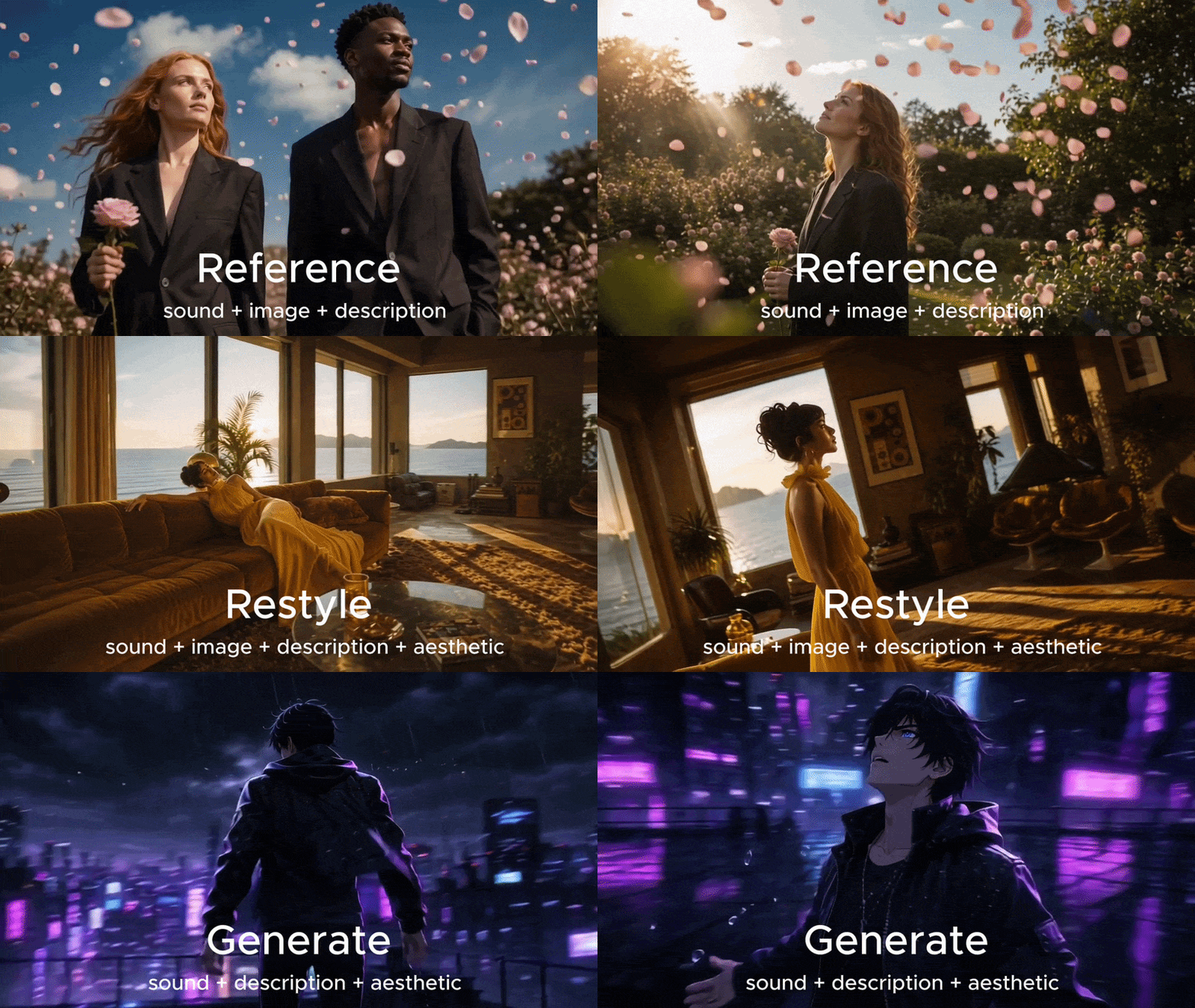
Three Modes to generate with
Generate: Create a music video from your audio and description
Reference: Create a music video from your audio, description with a reference image
Restyle: Create a music video from your audio, description a inspirational guiding image
Access the Music Video Montage workflow
Open Music Video Montage in the Kaiber Dashboard Workflows,
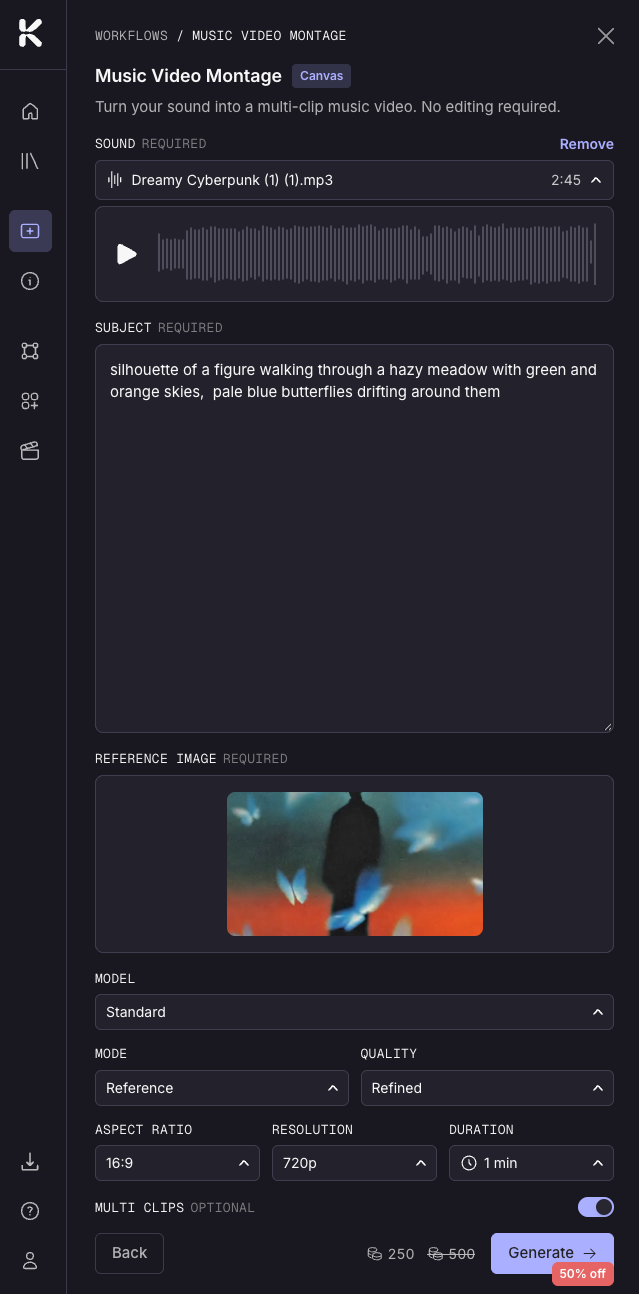
Add your Audio
Upload your audio file from your Media Library or device. Video Montage analyzes it directly, so the video it generates is shaped by the content and mood of the sound.
Settings
Mode
Generate Mode creates a music video based on your audio and (optional) text prompt
Reference Mode uses your image as a reference for the style and subject of the video
Restyle Mode restyles your image to use as reference for the subject of the video
Choose your video length, aspect ratio, mode, quality and resolution
Video length: Choose 30 seconds, 1, 2, 3 or 4 minutes.
Aspect ratio: 16:9, 9:16, 1:1, 3:4, or 4:3
Model
Standard (PixVerse V6): the original. Polished, high-quality montages
Turbo (MiniMax H3 Max Turbo): the new kid. MiniMax's latest model for faster generations with excellent movement.
Resolution: 540, 720, or 180p
Quality: Refined or Fast
Multi Clip toggle on or off
Want more visual variety in each clip of your video? Turn on Multi Clip. Instead of one continuous shot per clip, you’ll get multiple shots packed into each one.
This makes a big difference with longer videos, as longer videos have longer clips. With short videos Multi Clip gives a more dynamic feel with more cuts and camera angel changes.
Image Upload
Add an image from your Kaiber media library or upload from your device.
Prompting for Music Video Montage
Music Video Montage is montage, not a story. One character, one world, one style, caught mid-moment. The system handles camera, pacing and motion on its own — your job is just who, where, and how it looks.
Things to include in your prompt
Subject: who or what will be the main subject of the video. Add in physical details: hair, build, clothing, texture.
A young man with pale skin and blue eyes wearing a black hoodie and blue jeans
Action: if you have a character in the video describe one main action they are doing. Things like walking, dancing, or exploring
Location: one grounded setting: time of day, weather.
Aesthetic: The visual style of the video such as anime, oil painting, 1970s film, claymation. If you don’t have a clear idea of the style you want leave this field blank, the audio analysis will pick a genre-appropriate style. This works best on songs with a strong, clear genre identity.
Keep it specific, not long
"A woman with close-cropped silver hair in a weathered leather jacket, walking through rain-slicked city streets at night" works better than a shorter or overloaded prompt.
Leave out
Story language: Montage isn’t an narrative model. Words like "first," "then," "as the song builds" won’t come through in your video.
Camera direction: Camera movement is automated by Music Video Montage. Directions like “camera zoom”, “camera pan” are not needed in the prompt.
Lyric video instructions: To create a lyric video use the Lyric Video workflow.
More than one competing subject. If you want two or more interweaving themes in your video generate one short Music Video Montage for each and edit them together in Kaiber’s Timeline Editor or with any video editing software.
Test how your prompt is interpreted with your music with a 30 second low resolution video before committing to a longer video.
Want to know more about best ways to prompt? Read Music Video Montage: Full Prompt Guide
Generate your music video
Once you’re happy with your prompt and settings, click the Generate button to create your video.
Other Resources
Find out what's happening behind the scenes when you create your Music Video Montage, how your audio is analyzed, and more on how to prompt for best results.
Music Video Montage: Full Prompt GuideCreate a music video with Music Video Sequence.
Music Video Sequence: Create music videos shaped by your soundLearn how to create lyric videos with Kaiber.
Lyric Video Workflow: How to Create Lyric Videos in KaiberConnect clips and images with transitions using Kaiber’s Frame-to-Frame workflow.
Need to edit an image to create the perfect reference? Use the Image edit workflows on Kaiber Dashboard with mobile or desktop, or the range of editing tools and models on Canvas in desktop.
Was this helpful?
Still need help? Ask the team