How to Animate Images in Kaiber
This guide covers how to animate images in Kaiber, using the intelligent workflows on mobile and desktop, or with your choice of models on the Canvas.
Written By Kaiber Support
Last updated 20 days ago
Great images make for great videos
Most AI creators generate videos from images. Compared to text-to-video, animating images offers:
More control over the elements in the video
Style consistency
Brand and characters consistency over longer videos or campaigns
Iterating images is cheaper and faster than iterating videos
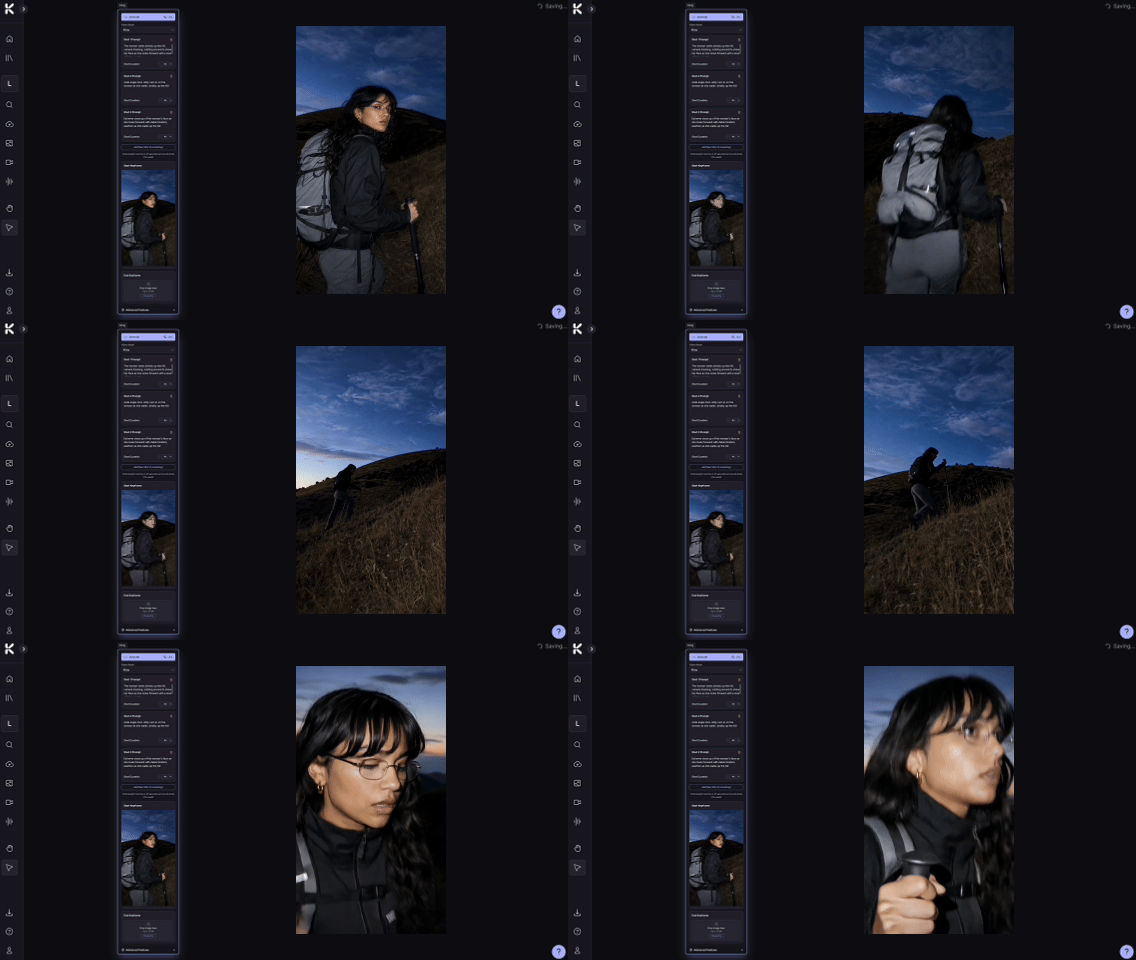
How your image is used in the video
Different models and modes process images in different ways. Depending on your settings an image may be used as a:
Start frame: the image becomes the first frame of the video.
End frame: the image becomes the last frame of the video.
Reference: elements from the image guide the video based on your prompt.
TIP: For best results, make sure your image is the same aspect ratio as the video you want. Crop or resize your image if needed with the adjust image tool (right side panel) or the image resize tools in the image model menu.
Animating images in Kaiber
In Kaiber you can animate images using the range of intelligent workflows in the dashboard on mobile and desktop, or with your choice of models on the Canvas (desktop only), and in Beat Sync Motion Cut and Scene Cut videos (desktop only)
Workflows for animating images
There are a range of general and specialist workflows available on mobile and desktop.
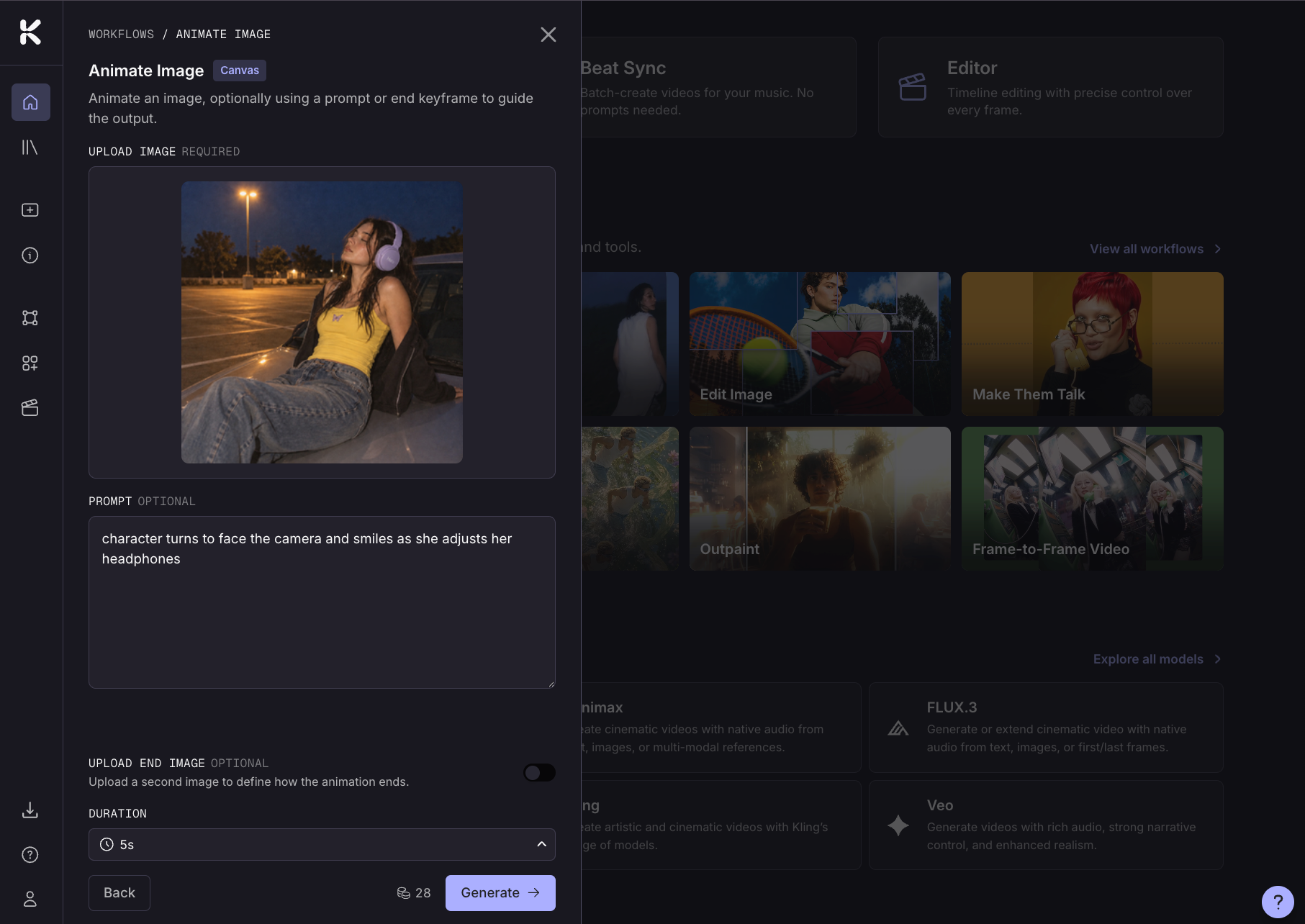
Animate Image workflow
Animate Image is an intelligent workflow that:
Creates a 5-15 second video using your image as the start frame
Add an optional end frame for more control
Generates videos with audio and speech
Prompts are optional
Specialist workflows for animating images include:
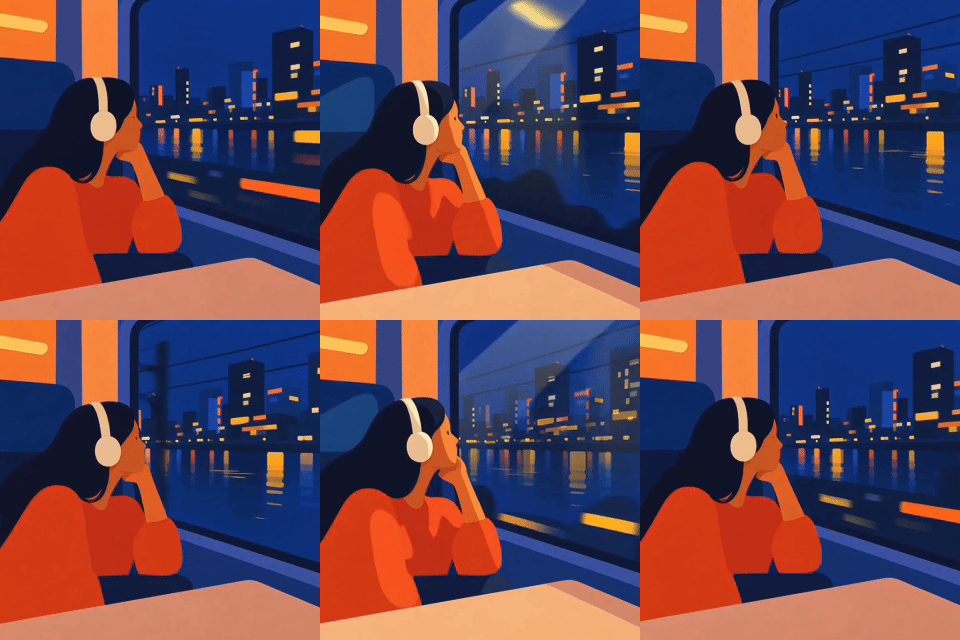
Loop Video Generate a seamless loop transition from your video. Describe the transition with a text prompt. Read the guide
Frame-to-Frame-Video Animate between two images, or the start and end frames of two clips.
Character Lip Sync Make a character speak or sing with your audio.
Make Them Talk Create videos with characters that speak.
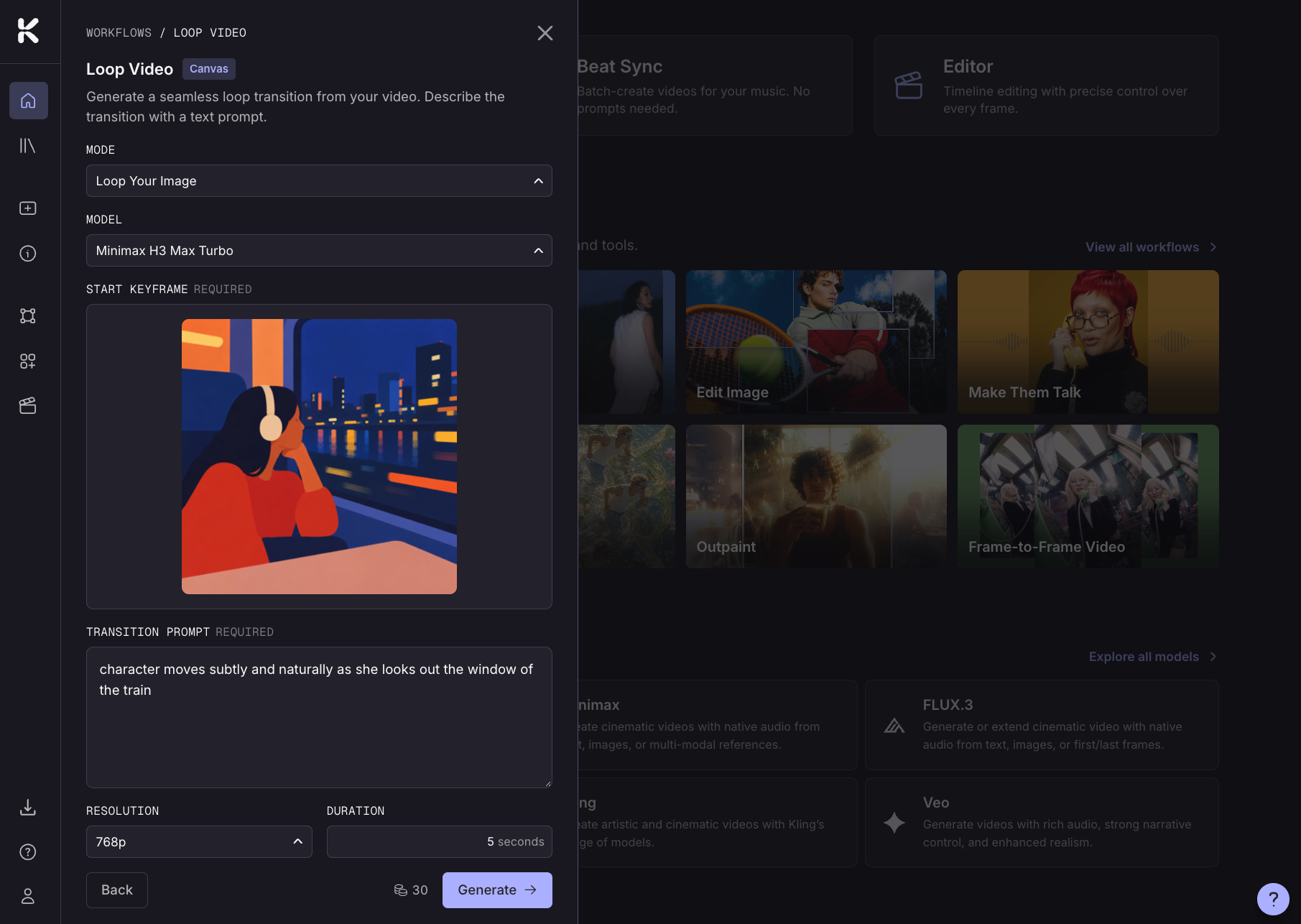
How to animate images with workflows
Click on the workflow to open it.
Upload your image/s
Add a prompt describing the motion you want, for example "fast zoom in," "camera pans left" or "character turns."
Set the duration.
Explore the model choices, resolutions, and generation modes for more options
Click Generate.
Animate images in Canvas
Animate your images with your choice of models on Canvas. Desktop only.
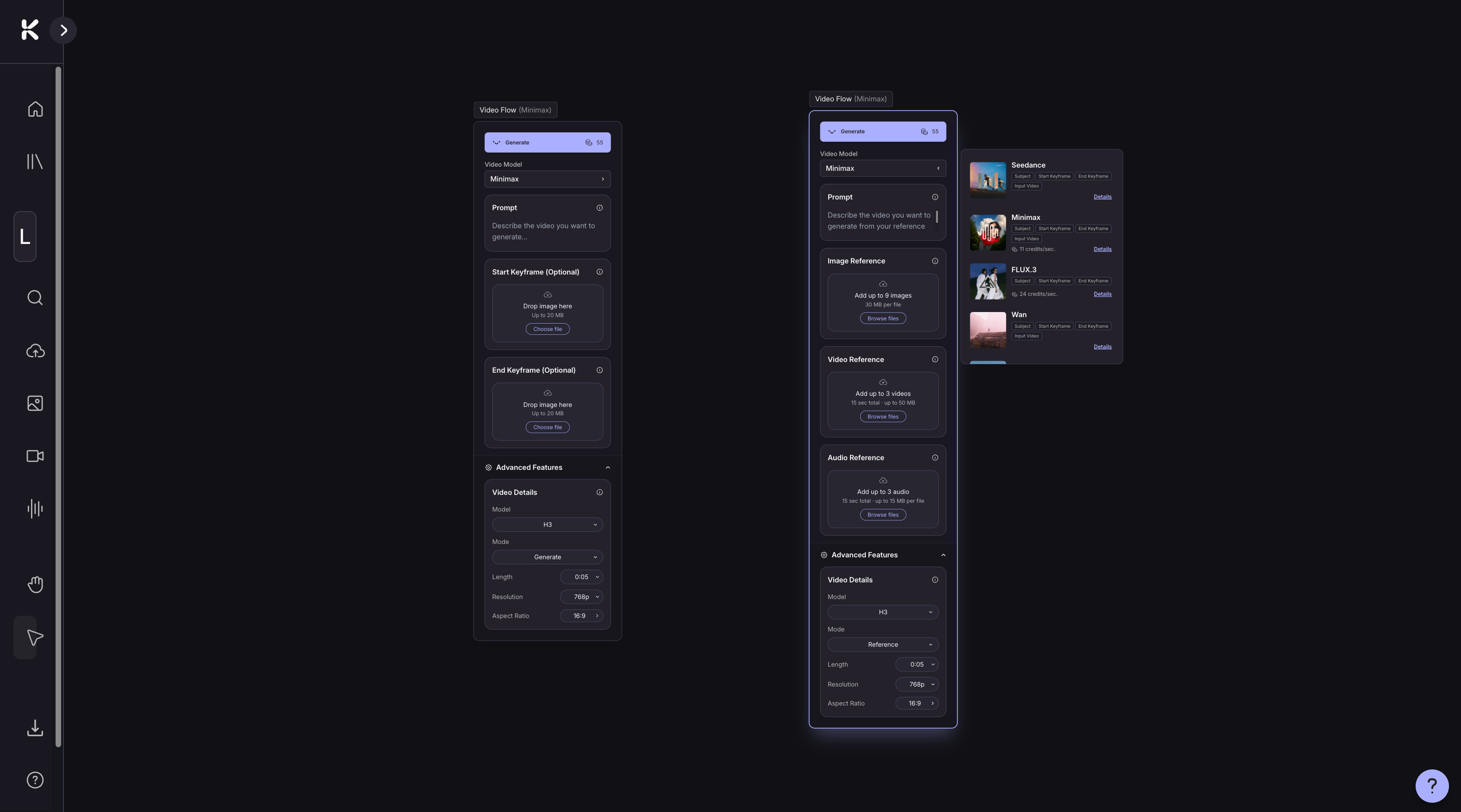
Click Create Video to add a Create Video Flow to the Canvas.
Choose a model. Click the model name in the flow to open the model menu and choose your model.
Open advanced settings to adjust duration, model version, aspect ratio, mode (reference or generate), audio on or off, color palette and resolution. Available settings depend on the model you're using.
Upload your image/s to the image upload field.
Add a prompt to the subject box to describe the movement you want to see in your video.
Click Generate.
Your video generates on the Canvas and also saves to your media library.
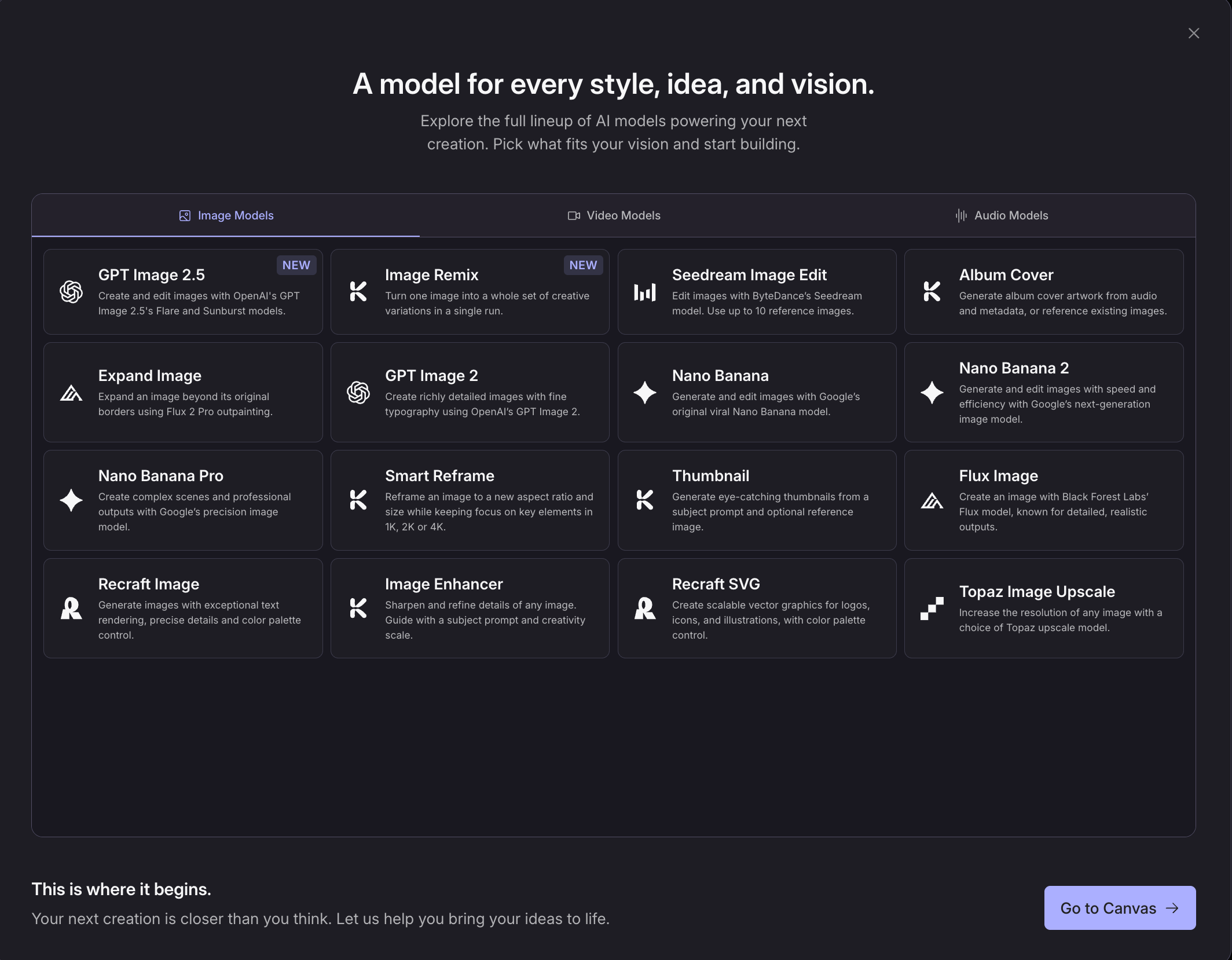
Click on explore all models on your dashboard to see the full range of models and add them directly to the Canvas.
Other resources
Was this helpful?
Still need help? Ask the team