How to Create Frame-to-Frame Videos in Kaiber
A step-by step guide to creating videos that transition between 2 images in Kaiber on mobile and desktop.
Written By Kaiber Support
Last updated 20 days ago
What is a frame-to-frame video?
A frame-to-frame video creates a transition between two images. You upload a start frame and an end frame, and the video fills in the motion that gets you from one to the other. It is technique you’ll see used in music videos, short films, product videos, transformation videos, clothing swap videos, logo reveal videos and more.
Frame-to-frame videos allow you to:
Transition smoothly between two distinct images or scenes
Control exactly how a video starts and ends
Create a clip to connect two separate videos into one continuous video
Frame-to-frame videos give you more control than animating a single image, since you're defining both the start and the end of the shot instead of only the starting point.
Tips:
Always use two different images. Frame-to-frame videos create a transition between images, so using the same image twice results in a still video.
Make sure both images are the same aspect ratio.

Frame-to-Frame Video workflow
Frame-to-Frame Video is an intelligent workflow for Kaiber desktop and mobile.
Frame-to-Frame Video:
Animates between two different images
Requires a prompt describing the movement you want to see between the frames (not a description of the images)
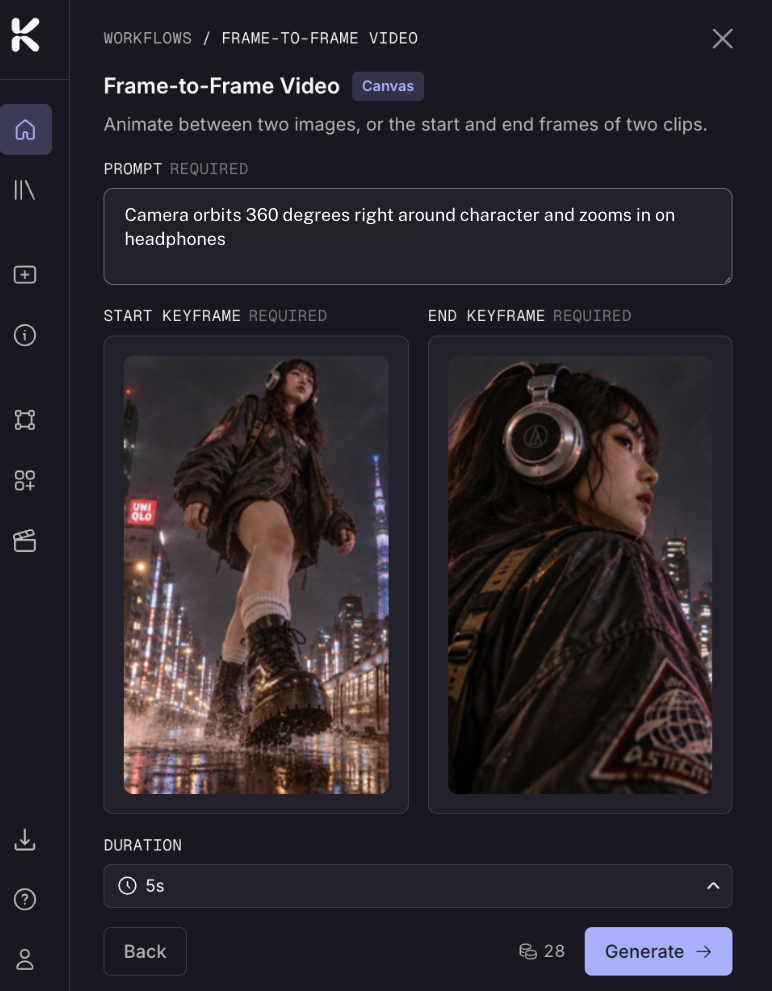
Access and use the workflow
Frame-to-Frame Video is in the Workflows page in your dashboard, on mobile and desktop.
Click Frame-to-Frame Video to open the workflow.
Upload your start and end keyframes.
Add a prompt describing the motion you want to see between the two frames, e.g. the character turns to face the camera or the scene fades from day to night.
Set the duration.
Click Generate.
Prompting for frame-to-frame videos
Keep the prompt focused on motion and change, not on describing what the images already show.
Some examples to get you started:
"Smooth camera pan as the scene shifts from day to night"
"The woman turns and walks into a new environment"
"Slow dissolve as the colors shift from warm to cool tones"
"Gentle zoom out revealing the full scene"
“360 degree camera orbit around the subject”
Short and clear beats long and detailed.
Focus on movement, camera direction, and the feeling of the change.
Match your prompt to the length of the clip — 5 seconds of video needs 5 seconds of movement, not more.
Tips for better transitions
Images that share similar lighting, style and composition will produce smoother results. If multiple elements in the two images are very different — different locations, outfits, time of day — the model will interpret the gap creatively. That can look great. It can also be unpredictable.
A good trick: use an image generation model to create or edit your start and end frames so they share connecting elements. Similar lines, objects, characters or patches of color give the model something to work with between the two frames.
Ideas to try
Outfit swap: same character, same pose, different clothing
Location change: same subject, two different environments
Creature or object transformation: morph one into another
Time of day shift: sunrise to sunset in a single scene
Before and after: a product, room or character transformation
Style shift: same composition, different visual styles (photo to illustration, for example)
Explore other frame-to-frame video models on Canvas
Kaiber supports frame-to-frame videos with leading models on Canvas in desktop.
Each handles transitions a little differently, from dramatic transformations better, others nail subtle natural motion. It's worth trying a few to find what suits your project.
To use frame-to-frame make sure the model is in Generate mode. You will see a image upload fields labeled start frame and end frame.
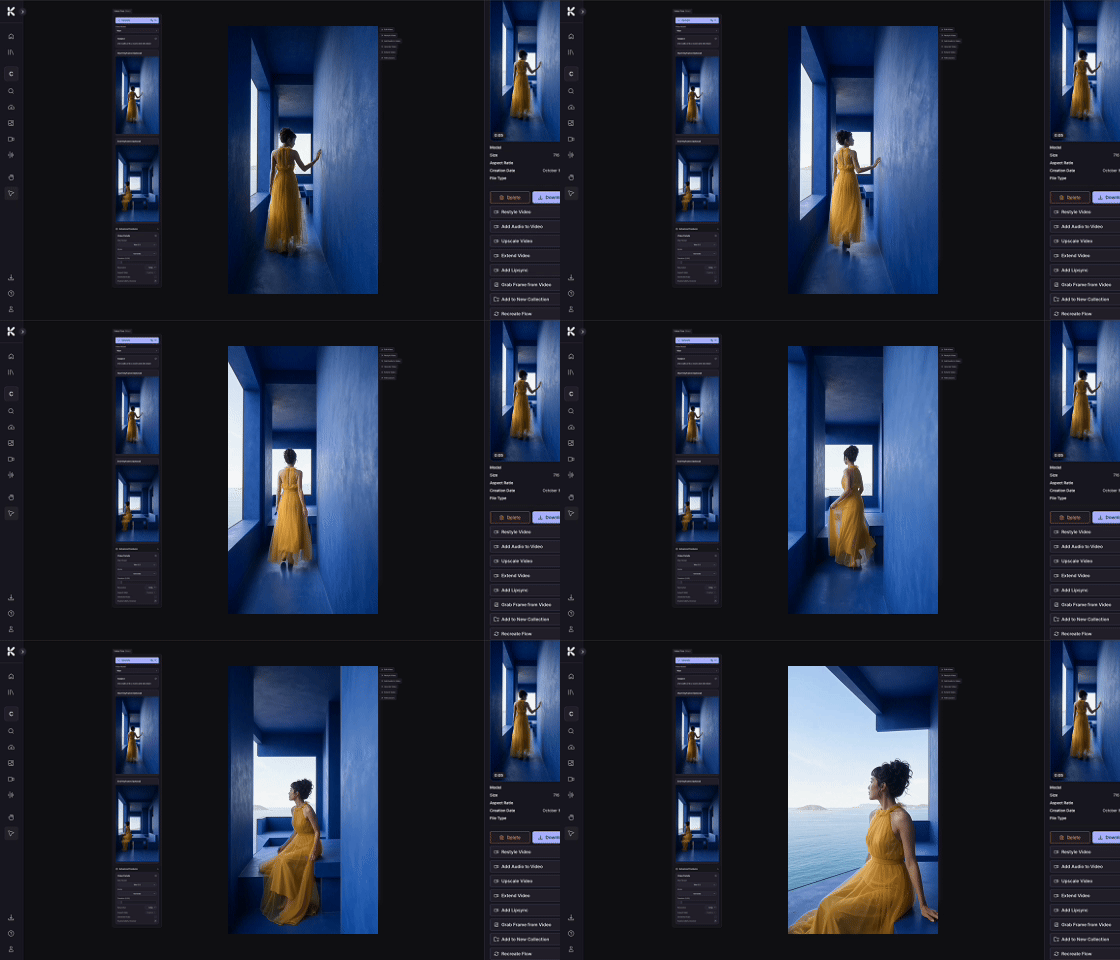
Video models that support frame-to-frame videos on Canvas include:
Kling
Seedance
Minimax
Wan
Veo 3.1
Luma Ray 2 & Ray 2 Flash
Was this helpful?
Still need help? Ask the team