Create Thumbnails for Your Videos from a Description in Kaiber Canvas
Generate professional thumbnails for your socials in seconds using Thumbnail Generator.
Written By Christine Larsen
Last updated 3 months ago
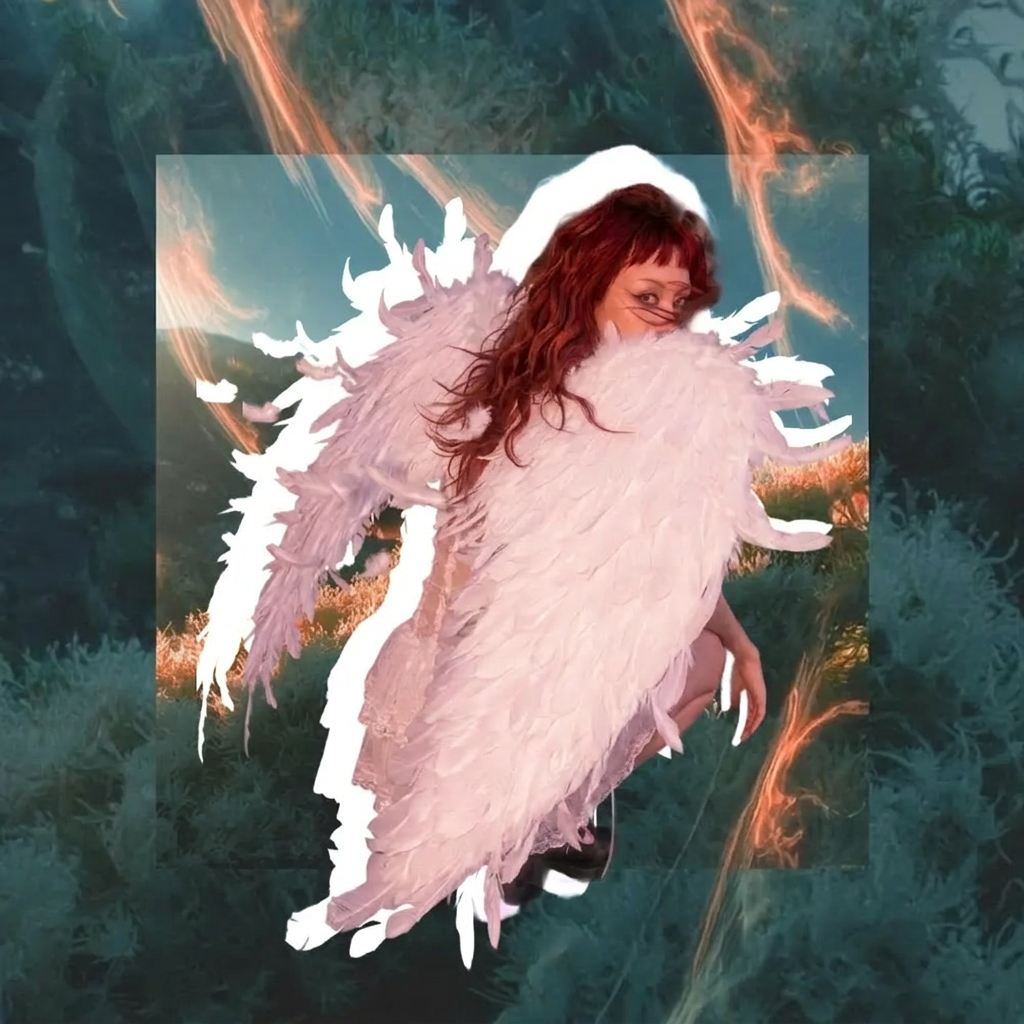
Thumbnail Generator creates eye-catching thumbnails for your videos. Pick your size, describe your subject, add an optional reference image and a few words of text to display.
Access
Thumbnail Generator is in the Create Image Flow Menu on Canvas, or access through the Featured Workflows section on your Dashboard.
Settings
In the Advanced Features at the bottom of the Flow choose between Generate to create from text or Reference to create with an image.
Choose the aspect ratio of your thumbnail 1:1, 9:16, 16:9, 3:4, or 4:3.
Choose quality: Low for fast generations, high for detailed generations; or medium.
Subject: briefly describe what the video is about. This is also where you can add style cues, like "moody cinematic cooking tutorial" or "bright energetic fitness video", where to position the text, and colours you want to see in your thumbnail.
Text to include (optional): Any words you want on the thumbnail, keep it to 3-5 words per thumbnail.
Want to use a reference image? Open Advanced settings and toggle to Reference to open the image field and upload or drop in your image.
Image reference (optional): upload an image to guide the visual style.
To change the aspect ratio:
Open Advanced Features and choose from 1:1, 9:16, 16:9, 3:4, or 4:3.
Hit Generate to create your thumbnail.
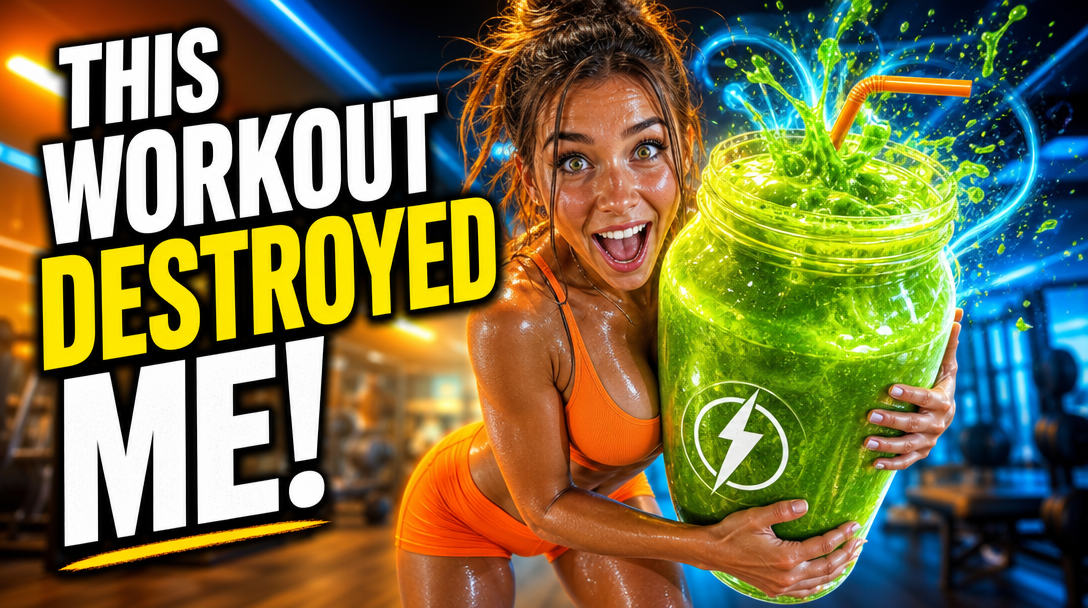 |  |
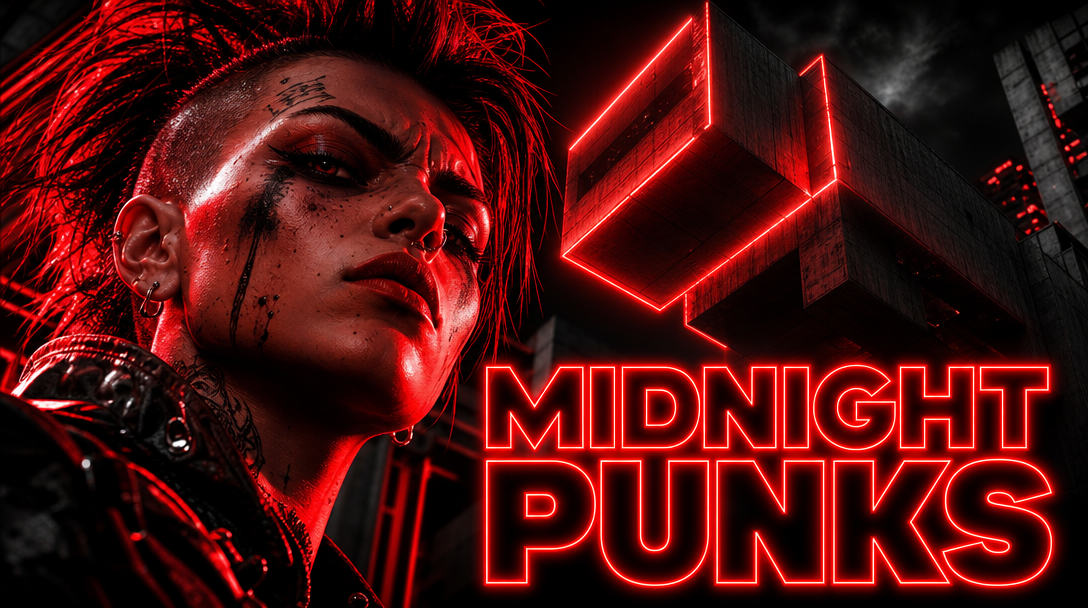 | 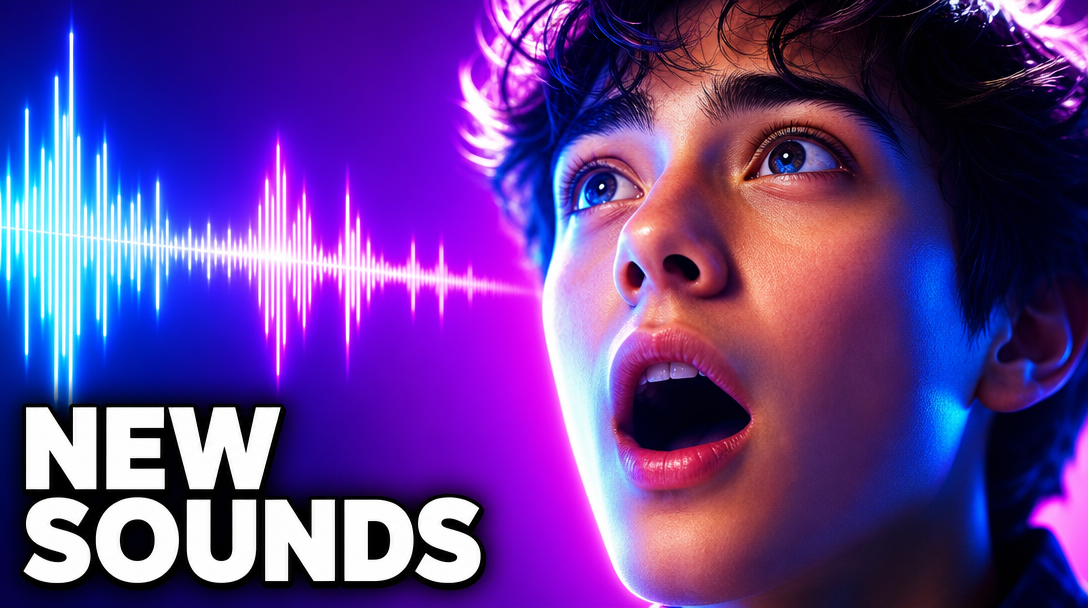 |
 |  |
Was this helpful?
Still need help? Ask the team