Put Your Logo on a Product in Kaiber Canvas
A quick guide on how to add your logo to t-shirts, caps, album covers, billboards or any product.
Written By Christine Larsen
Last updated 5 months ago
Want product shots with your logo on them? Think merch mockups, branded packaging, or product stills ready to animate into a video. Nano Banana in Kaiber Canvas makes it simple. You just need two images and a clear prompt.
An image of your product (generate an image if you don’t have one)
An image of your logo
Need to make a logo? Here’s how: Create a Logo in Kaiber Canvas
How to add your logo to your image
Open Kaiber Canvas and click Create Image in the left toolbar. Click on the model name and select Nano Banana, Nano Banana 2, or Nano Banana Pro from the model menu.
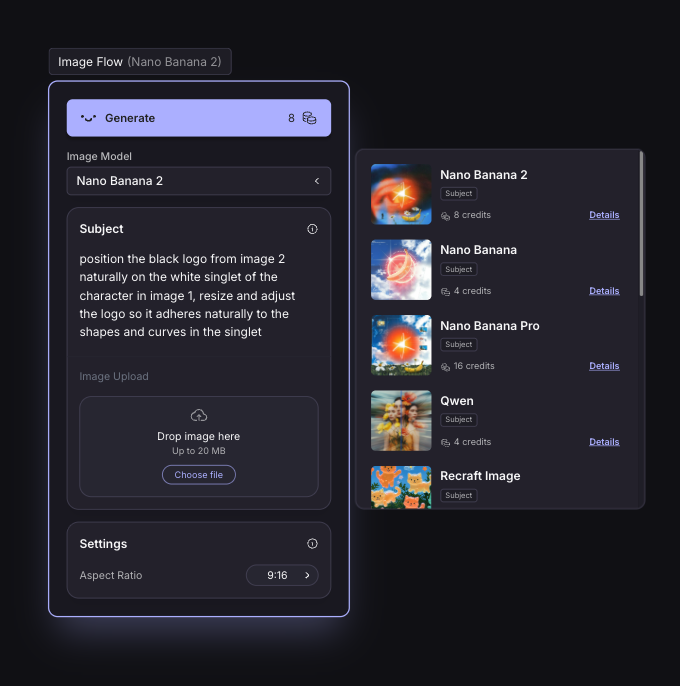
Upload both images into the image area. Your product or personin image 1, your logo as image 2.
Then write a prompt that tells the model exactly what you want. Be specific about placement.
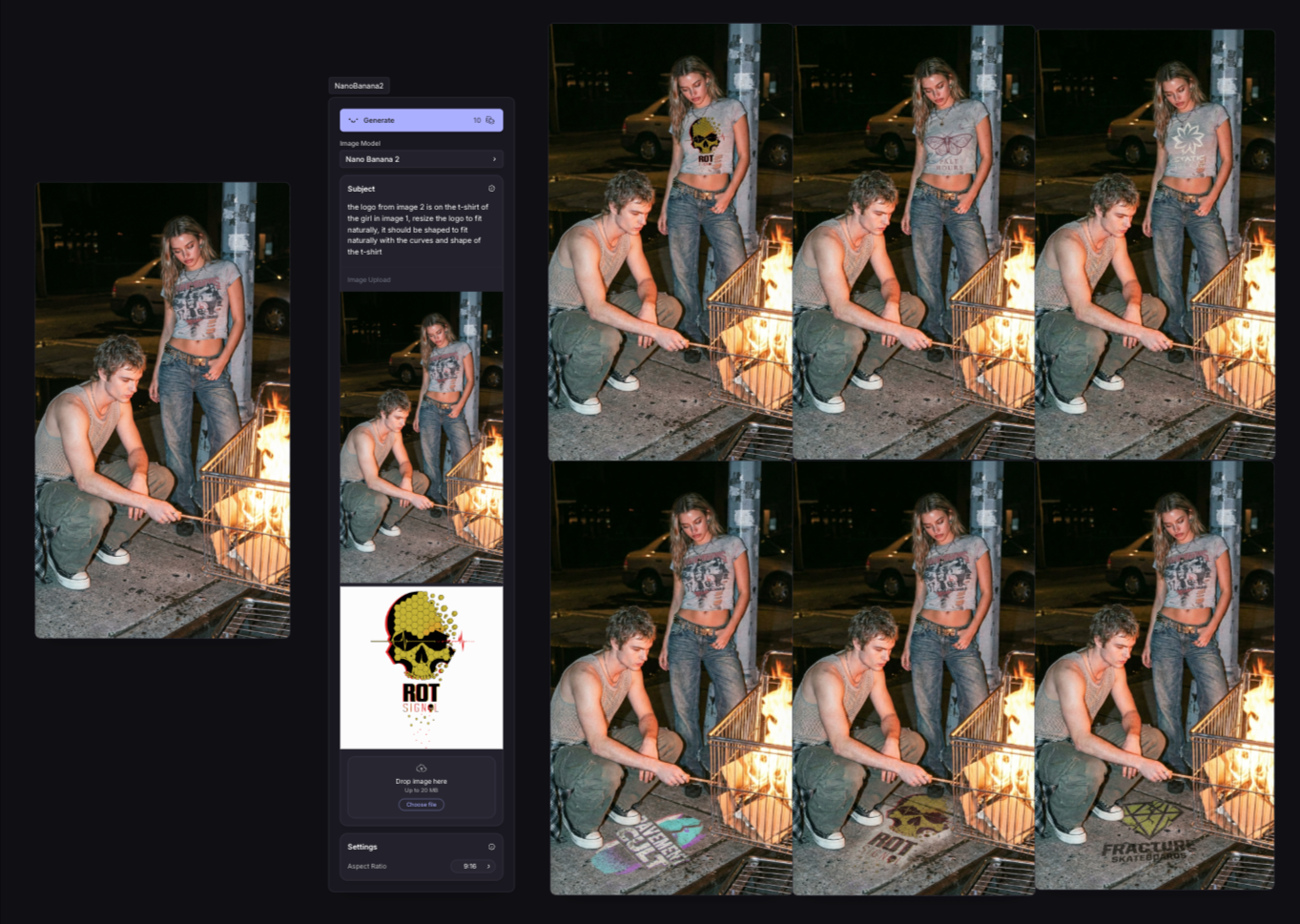
Example prompt: Place the logo from image 2 on the front of [name of your product] in image 1. The logo should sit centered on the [part of your product], resized to fit naturally and maintain its original colours.
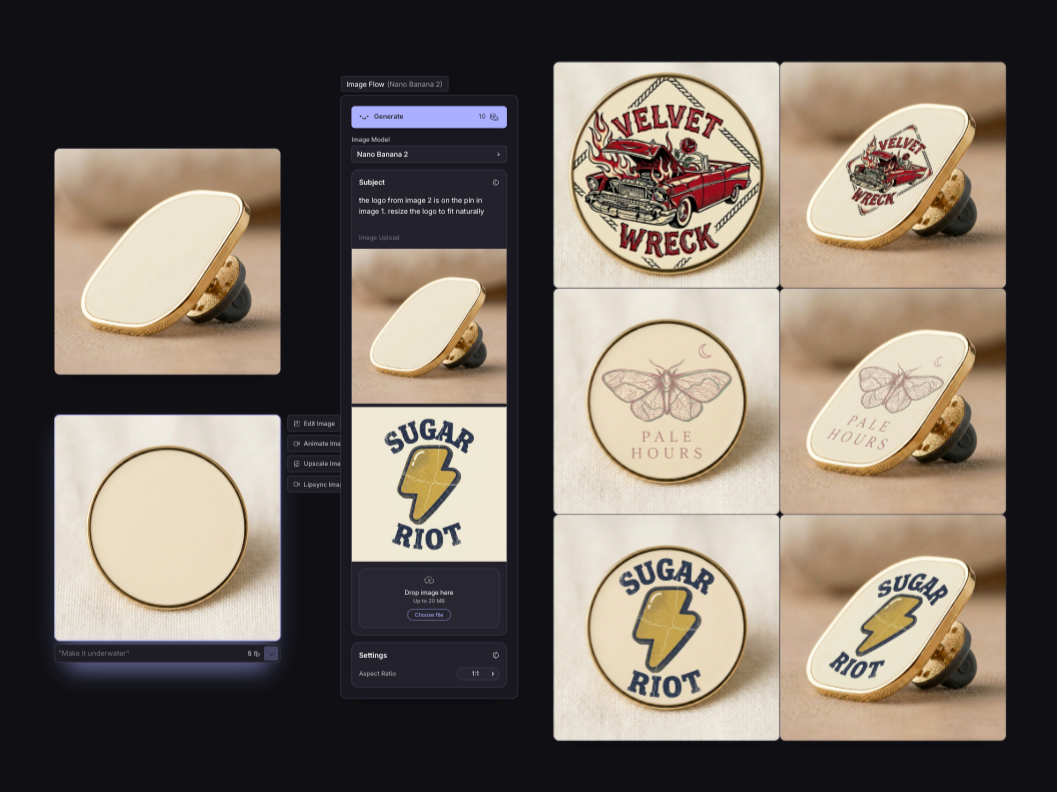
Generate and review. If the placement's off or the logo looks warped, adjust the prompt and try again.
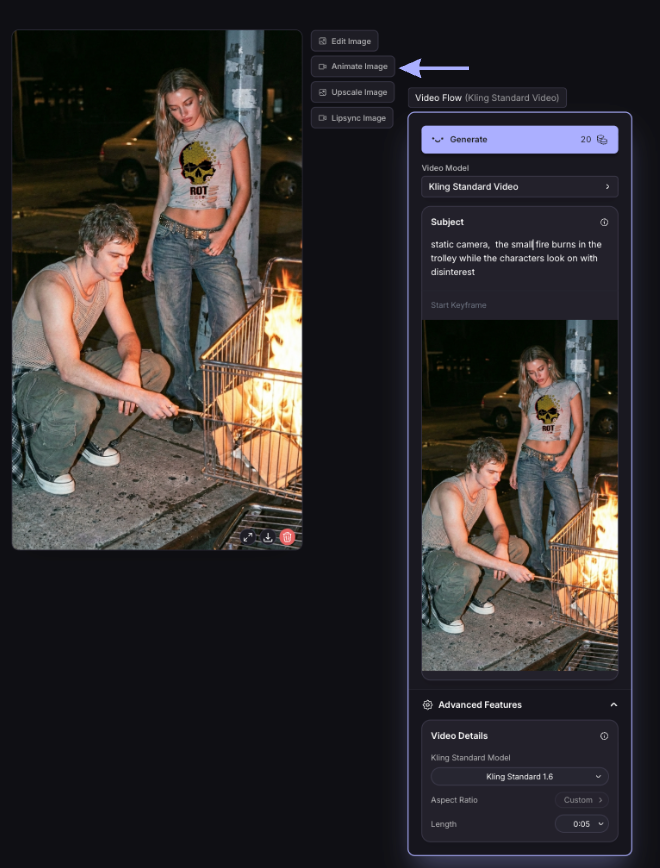
To use your image in a video, hover over the image and click the animate image button on the right.
A few tips
Your product shot needs to be clear and close enough that the logo placement reads well. Once you've got the image, you can edit it into other scenes or shots using the same approach.
A clean logo on a white or single-coloured background gives the model less to wrestle with. If you're working with a complex product shape (like a curved bottle or textured fabric), describe the surface in the prompt so the model can account for it. Something like: ...placed on the curved front of the bottle, following the contour of the surface.
You can also use this same approach to test different logo placements or colourways without touching your original files.
Was this helpful?
Still need help? Ask the team