Music Video Sequence 2.0: Consistent Characters Across Every Scene
This guide covers how to create music videos with Music Video Sequence 2.0, using the workflow on mobile and desktop.
Written By Kaiber Support
Last updated About 9 hours ago
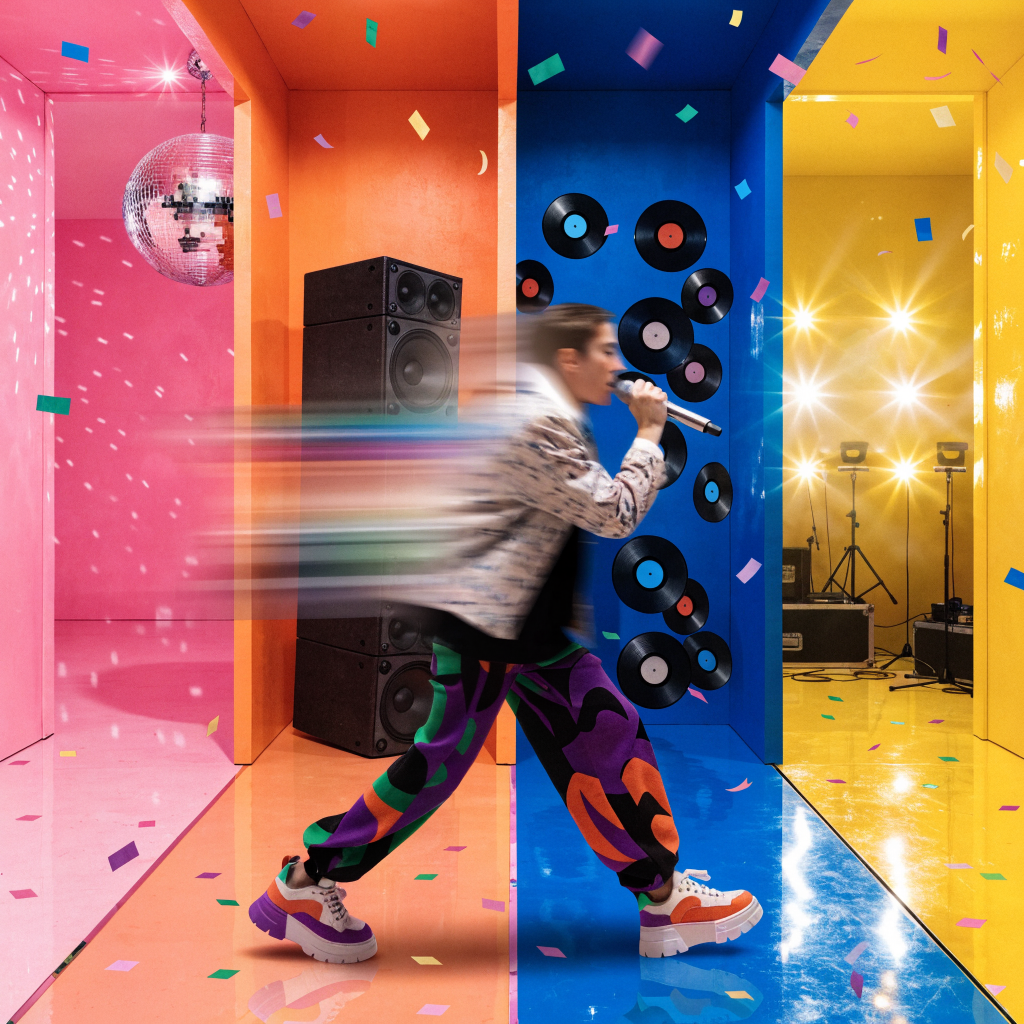
Music Video Sequence moves your character through different locations and actions, mapped to your song's structure.
Sequence 2.0 takes the uncertainty out of that journey. It locks in the character, their clothing, their hair and the style of the video, so the character stays themself even as the location changes around them.
What's new in 2.0
Before it starts generating your video, Sequence 2.0 builds a reference sheet for your subject: their face, their clothing and the aesthetic of the video. Every clip in the finished video is generated against that sheet, so the characters stay consistent through the whole video.
Access the Music Video Sequence 2.0 workflow
Open Music Video Sequence in the Kaiber Dashboard Workflows, on mobile or desktop.
What you need
Three ways to generate
Generate Mode: build a video from your sound and a text prompt alone.
Reference Mode: add an image to guide the look of every clip.
Restyle Mode: add an image, then restyle it using your prompt and the song's aesthetic.
Reference mode leans on the image for every scene. Restyle mode uses the image as a starting point, then lets your prompt and the music push the style somewhere new.
Mode: Generate
Character/Subject:
A man in his 20s with short spiked dark hair, wearing a black hoodie (hood down) over a plain t-shirt and dark jeansAction/Movement:
Climbing a fire escape ladder up the side of a building. Leaning against a railing, watching holographic ads flicker across the street below. Pushing open a heavy door into a dim, back alley.Setting:
A dense cyberpunk futuristic cityscape at night, towering buildings covered in neon signage and holographic ads, narrow alleys with steam vents, elevated tracks cutting between skyscrapers, wet streets reflecting colored light.Aesthetic:
Cyberpunk neon noir, moody blue-teal ambient with warm neon accents, high contrast, cinematic anamorphic lens flare,
Model
The model determines the cost and how many clips will be repeated throughout your video. If you choose Turbo or Lite you will see some repeated clips throughout the video.
Max: All unique clips are used in the video
Turbo: 20% of your clips will appear twice in the video
Lite: 40% of your clips will appear twice in the video
Reusing clips costs fewer credits, so Turbo or Lite are worth reaching for on a longer video or a tighter budget.
Settings
Length: 30 seconds; 1,2,3 or 4 minutes
Resolution: 480p; 720p; 1080p
Aspect ratio: 16:9 landscape; 9:16 vertical
How to prompt
Describe the subject of your video (the character or main focus), up to three or four different environments and actions for your character.
Think of it less like one shot and more like a handful of different moments from the same story, cut together.
Your prompt should cover four things:
Subject: who or what the video is about. Keep this to one or two characters.
Action: one main action per environment. Walking, dancing, climbing, looking back, running.
Setting: describe the settings, include descriptive details such as time of day and weather.
Aesthetic: describe the visual style of the video. This might be anime, oil painting, 1970s film. Leave this blank if you're not sure. The audio analysis picks a genre-appropriate style on its own.
Leave out of your prompt:
Story language. Words like "first," "then" or "as the song builds" don't need to be written in. Sequence already maps your environments to the song's structure.
Camera direction. Camera movement is automated, so skip directions like "camera zoom" or "camera pan."
Typography.
Lip sync instructions.
Timestamps.
Mode: Generate
Subject/Character:
Character1: handsome man age 20 with short dark hair and fair skin wearing an unzipped hoodie over a faded t-shirt and jeans,
Character 2: a beautiful woman age 20 wearing a denim jacket, open over a white top and dark jeansAction/Movement:
Walking through a city at night, climbing fire escapes, exploring rooftops, holding hands, kissingSetting:
A city at night, external fire escapes, roof tops, brick buildings, pavements, lights reflect on slick surfacesAesthetic:
clean crisp night photography, modern music video aesthetic, blue, black and grey colour palette, effect overlays
A few tips
Stick to one or two characters
Skip camera directions like "zoom" or "pan." Camera movement is automated.
Leave the aesthetic field blank if you're not sure. The audio analysis will provide a style.
Does not support lip sync.
Does not support timestamps or instructions to place scenes at points in the song.
Test with a 30 second, low resolution video before committing to a longer video.
FAQs
Do I need a reference image?
No. Reference images are optional. Generate mode builds the whole video from your audio and prompt alone.Will my character sing or lip-sync?
No. Characters don't lip-sync in Sequence. They act the song out through movement, expression and the actions you describe for each environment.What happens if I don't set an aesthetic?
The audio analysis picks a genre-appropriate style on its own. This works best on songs with a strong, clear genre identity.Can I pick a different model, like in the original Sequence?
No. Sequence 2.0 runs on a single model, Kaiber's H3 Max Turbo, so there's no mode to choose between.
Other resources
Create a Music Video with Music Video Montage 2.0
Was this helpful?
Still need help? Ask the team