How to Edit Images in Kaiber
This guide walks through how to edit images in Kaiber, on desktop and mobile.
Written By Kaiber Support
Last updated 20 days ago
Great images make for stunning social posts, and are an important first step in generating great videos. Edit an image to
Change the style or lighting
Change the setting
Adjust character position, expression or appearance
Transfer the pose from one image to another image
Or make other changes
In Kaiber you can edit images with a range of models on the Canvas (desktop only) or by using the image edit workflows on desktop and mobile.
Image edit workflows
Kaiber has a range of intelligent image edit workflows available for mobile and desktop. Each is designed to make specific changes to one or more existing images.
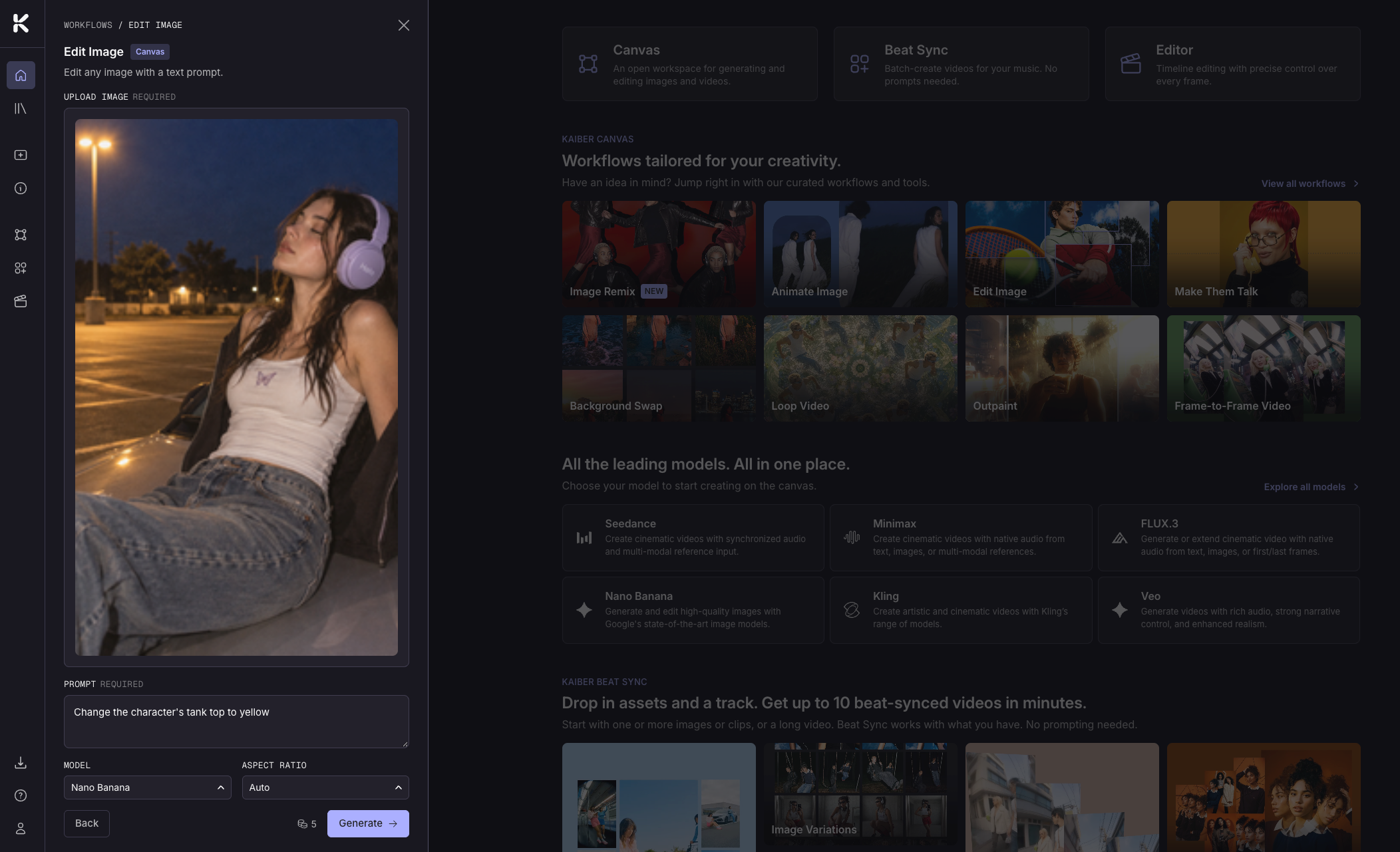
General image editing
Edit Image workflow Make changes to a single image with your prompt.
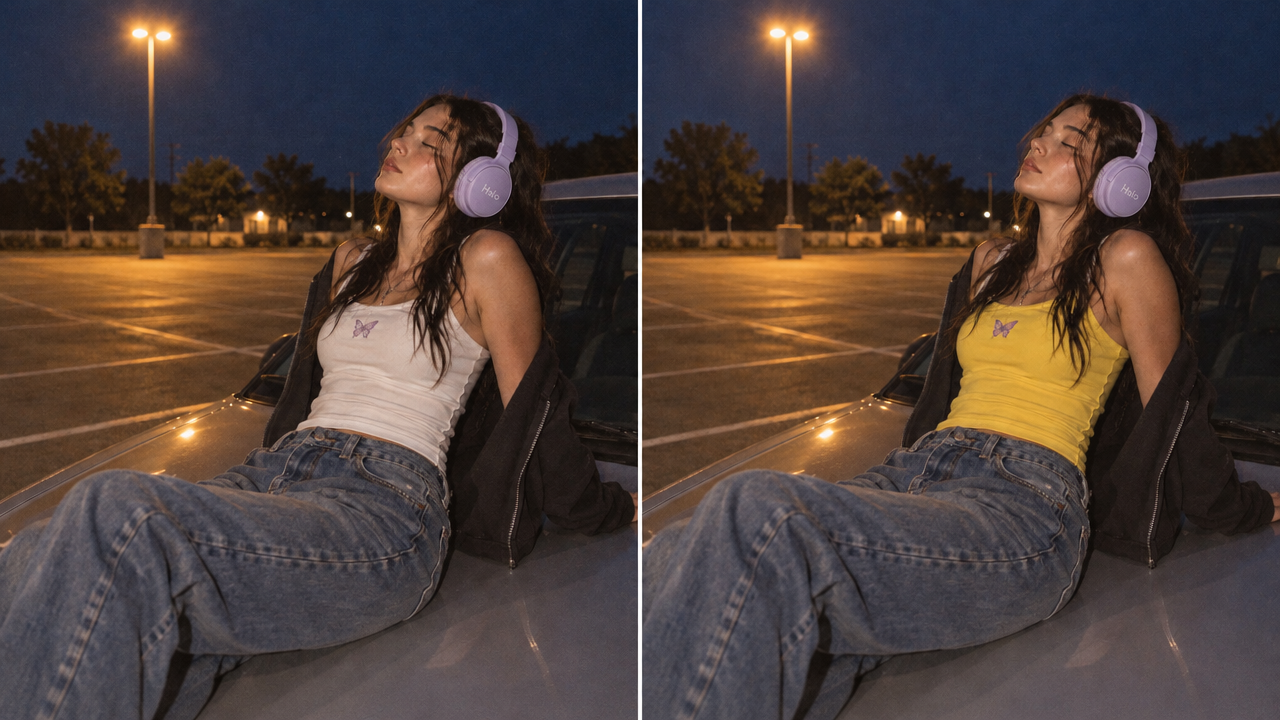
Example prompt: Change the character’s tank top to yellow
Combine Images workflow Combine elements from multiple images into a single image.
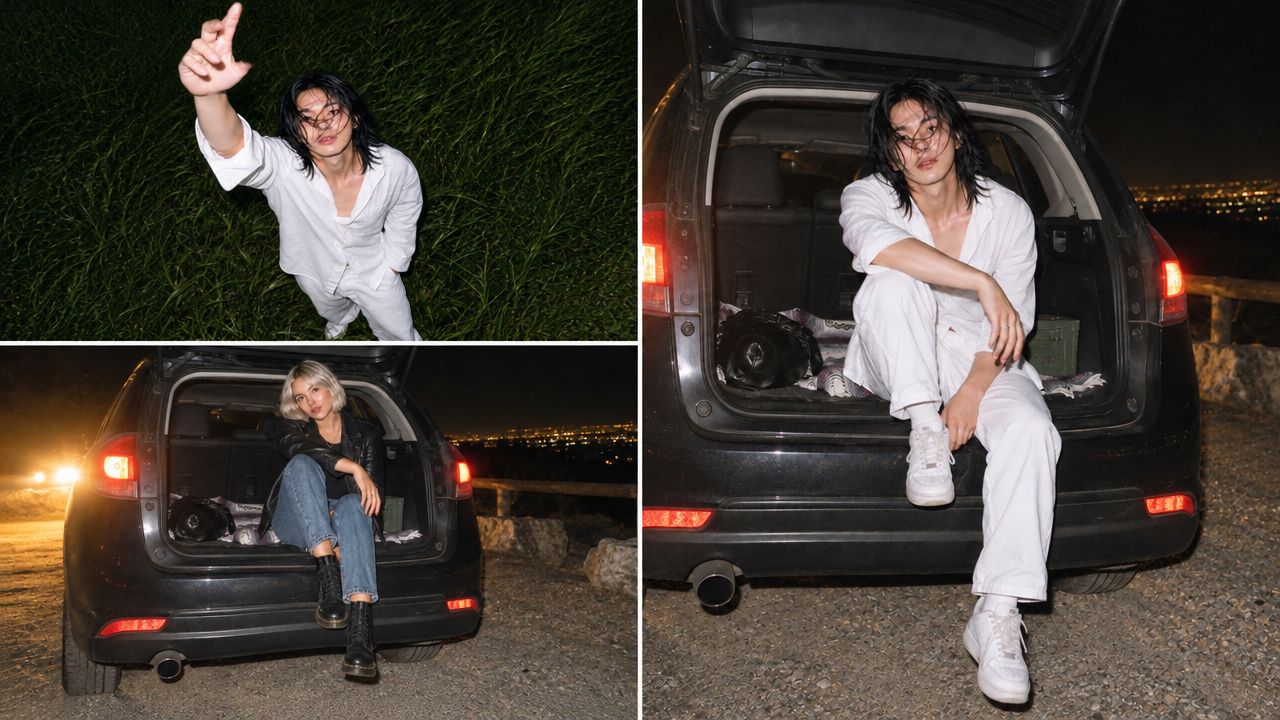
Replace the character in image 1 with the character in image 2. Maintain all other elements from image 1.
Specialist image editing workflows
Background Swap: drop your character or object into a new scene with a simple text prompt.
Clothing Swap: swap any outfit onto an image of your model.
Add Your Logo: add your logo to any product.
Restyle Image: transform any image with a new visual aesthetic, mood, or feel.
Smart Reframe: reframe an image to a new aspect ratio and size while preserving the original subject. Read the guide.
How to access the workflows
Use the links above to open the workflow from the links above, or find them on the Workflows page in your dashboard.
How to use the workflow
Select the workflow.
Add your reference image or images.
Write a prompt describing only the change you want to make.
Choose a model (optional) and an aspect ratio for the output.
Click Generate.
Edit images in Canvas
Canvas is available on desktop only.
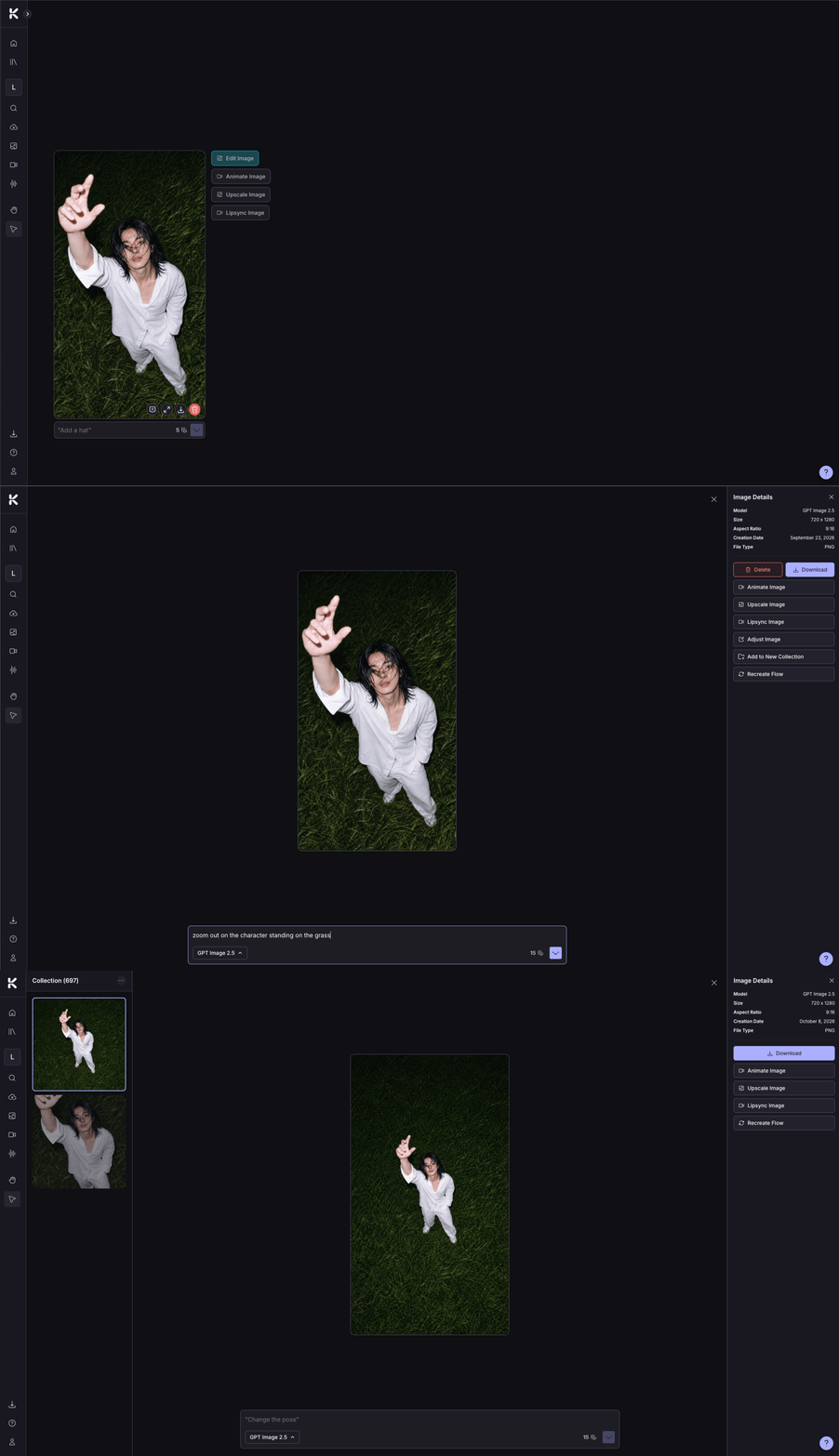
Select one or more images on your canvas.
Click Edit Image in the context menu beside the image, or double click the image.
This opens the image in the full screen image edit window.
Choose the model you want to use and write a prompt describing the changes.
Your generated images appear on the left side of the editor. Click one to select and view it in the editor.
Make any additional edits to your generated images.
When you're done, click the X in the top right to return to canvas.
Your edited images and the originals stay together in a collection on your canvas.
Other image editing tools in Canvas
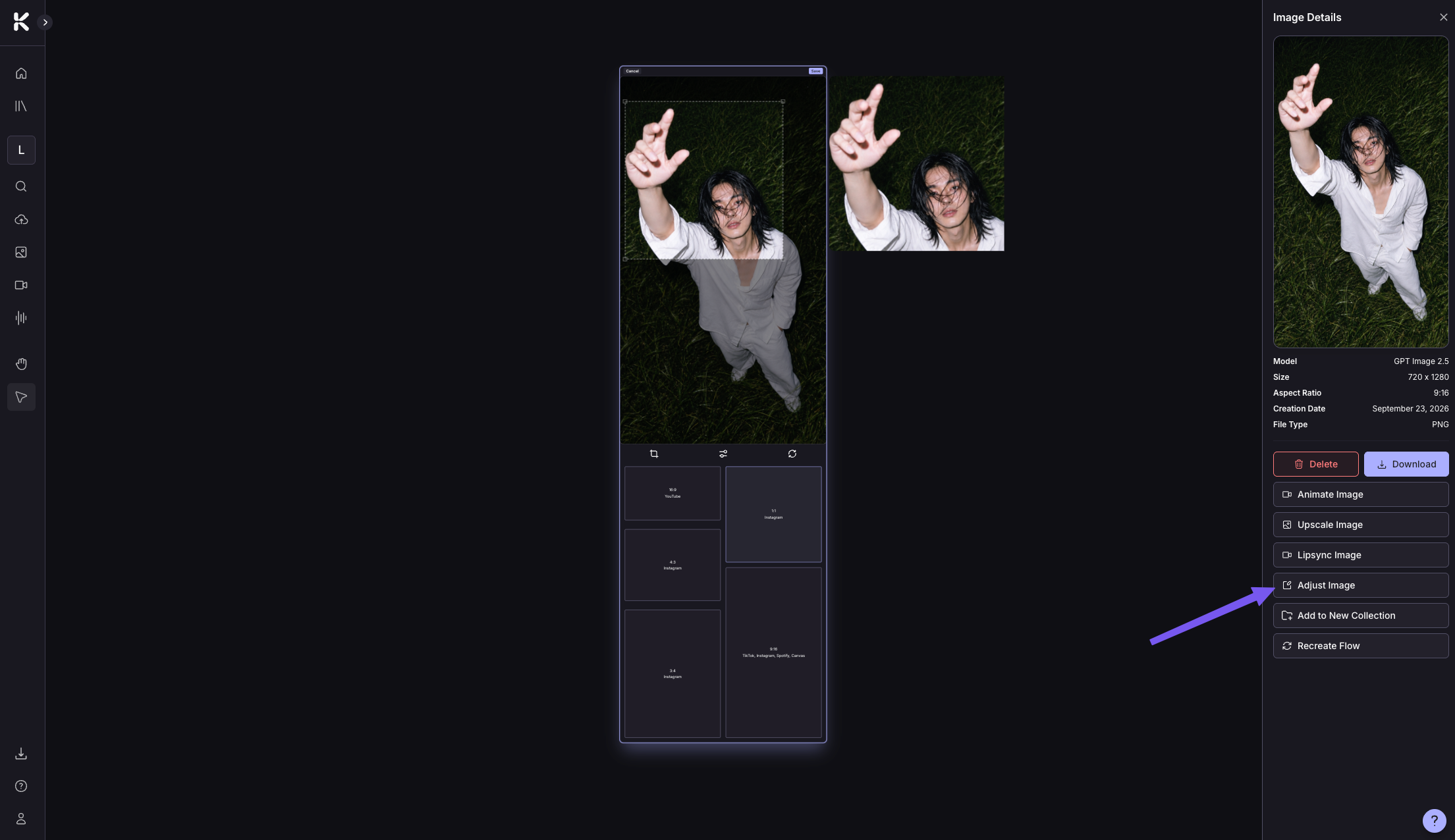
Adjust Image lets you crop an image, adjust brightness, contrast, grayscale and saturation, and rotate the image.
Select an image on your canvas and click Adjust Image in the right side panel to access it.
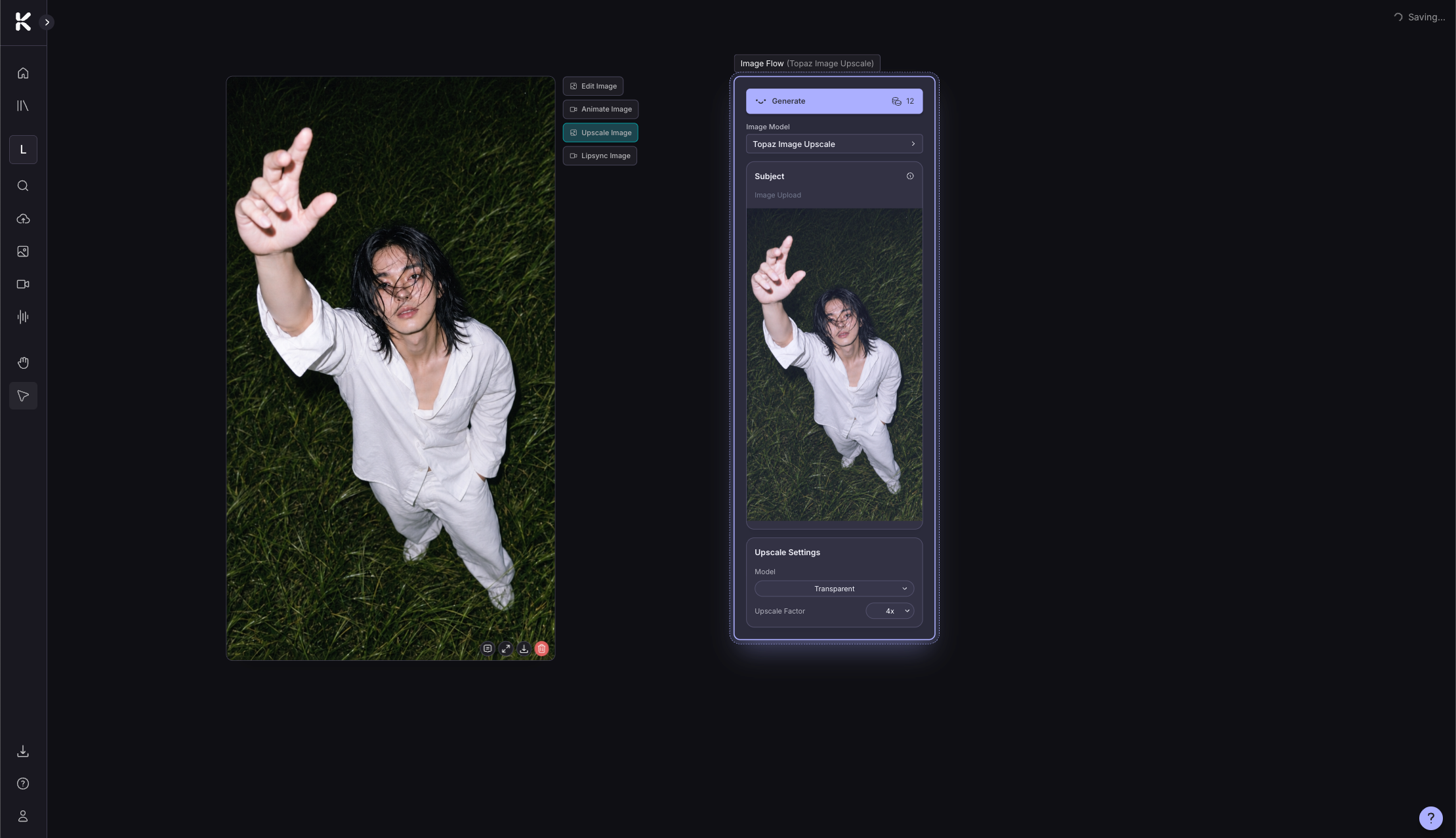
Upscale Image increases the resolution of an image.
Select an image on your canvas and click Upscale Image in the context menu or right side panel to access it.
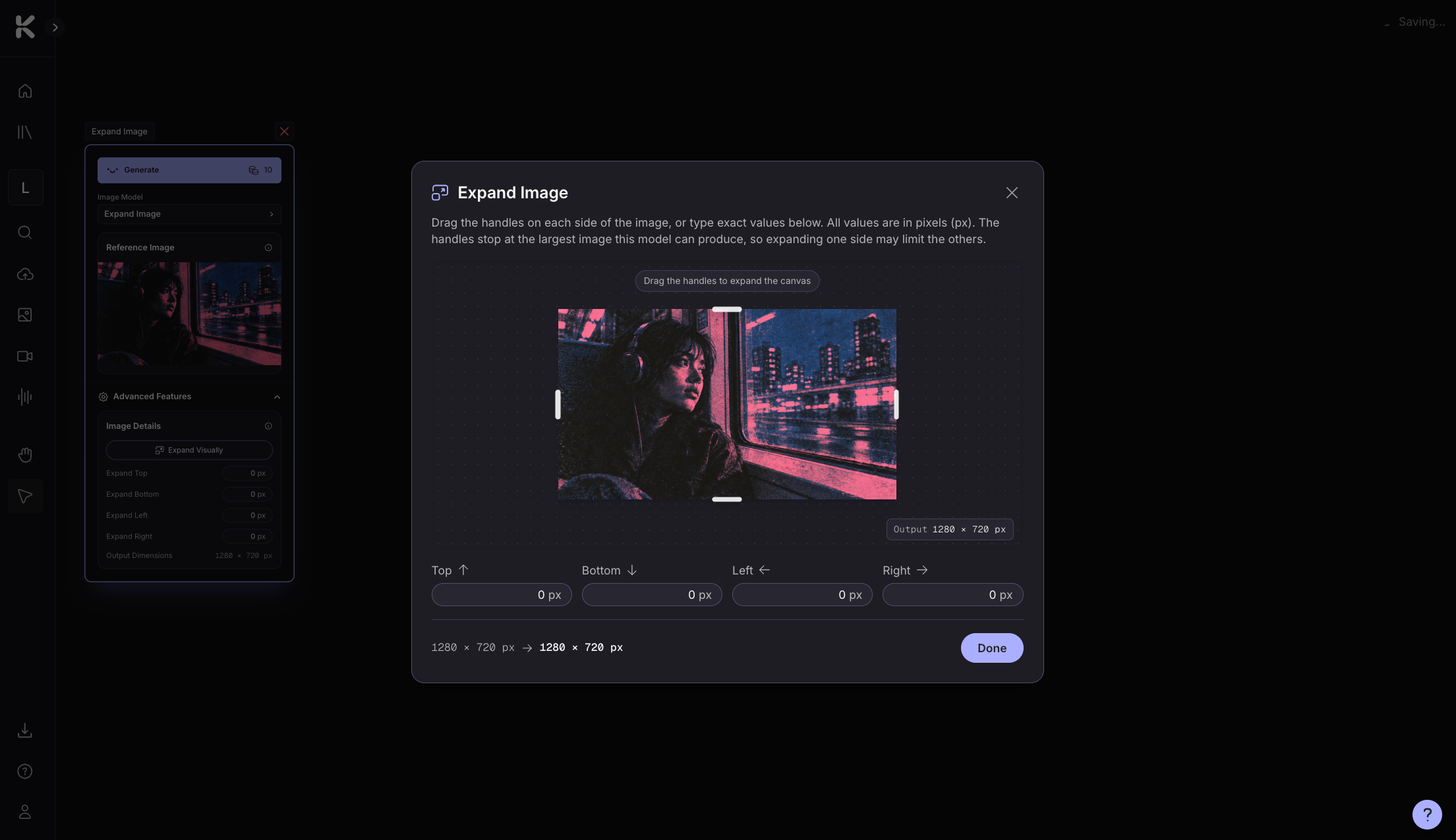
Resize an image with Smart Reframe or Expand Image. Add a Create Image Flow to the canvas and choose from the model menu to access
Was this helpful?
Still need help? Ask the team