How to Create a Looping Video in Kaiber
A quick guide to creating looping videos without editing, using Loop Video in Kaiber.
Written By Kaiber Support
Last updated 15 days ago
Loop Video creates a seamless looping video without editing. Create a loop from a single image, two keyframe images, a video, or resize and loop an image.
Loop Video is available on mobile and desktop.
Access & setting up the flow
Click on Loop Video in the dashboard to open the flow
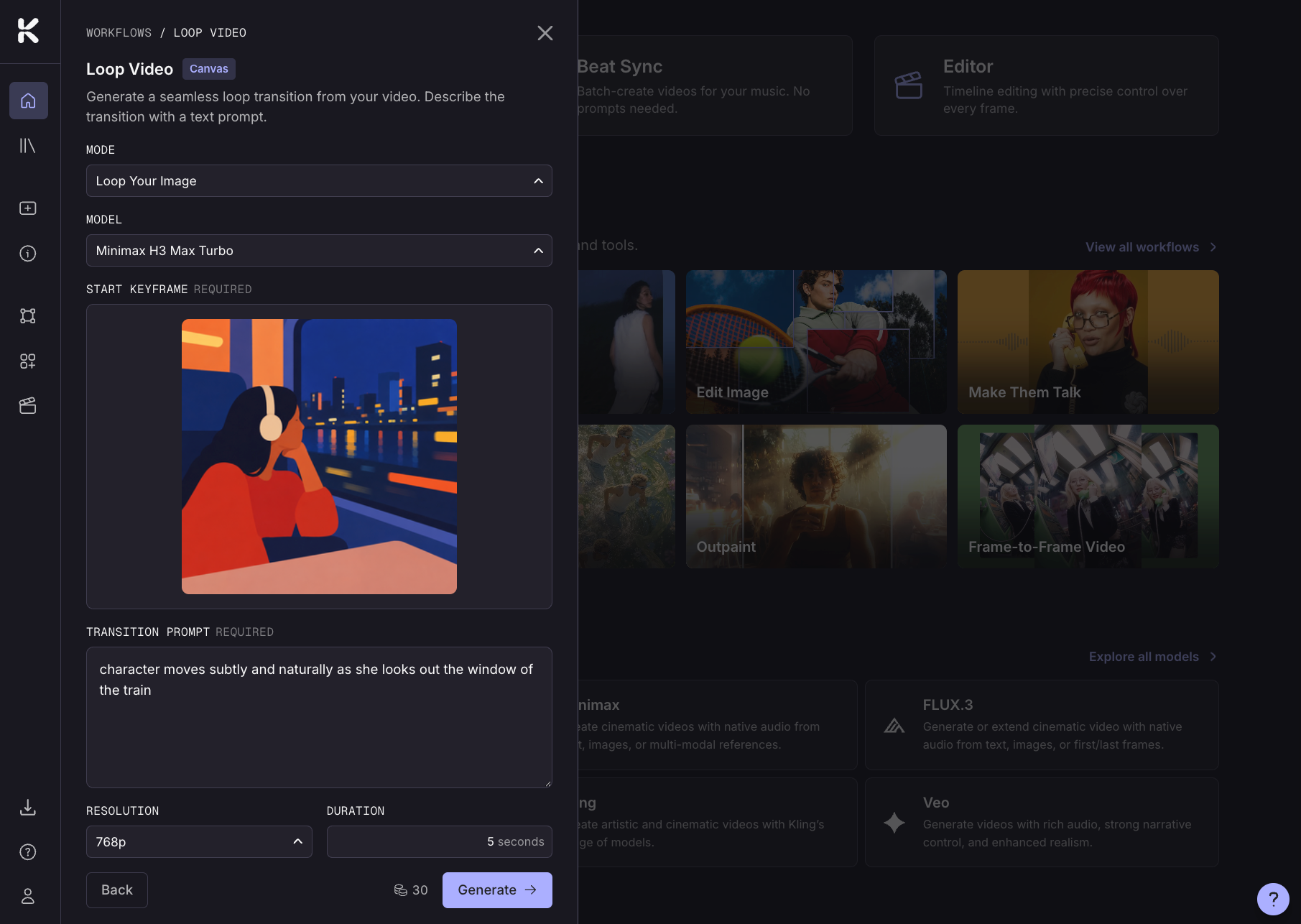
Mode:
Loop Your Video. Turn a video into a looping video with a connected transition clip.
Loop Your Image. Animate an image to create a looping video.
Loop Your Image + Reframe Image. Change the aspect ratio of your image and animate it to create a looping video.
Loop Your Keyframes. Create a looping video from two keyframe images.
Model: Choose the video model to use for your animation
Transition prompt: Describe the movement you want in the clip eg: 360 degree camera orbit around subject.
Resolution: Choose the resolution of your generation 720p or 1080p.
Generate Audio: Toggle on to generate audio with your video. Audio will only be added to the transition clips so if you are looping a video the audio will not be added to the original video.
Duration: Adjust the length of your generated clip.
Loop Your Image: duration will be the length of your video.
Loop Your Video: your final video will be the length of your transition clip + the length of the video you upload.
Loop Your Keyframes: set a duration for the first transition and one for the return transition to give the total length of the video.
Prompting for Loop Video
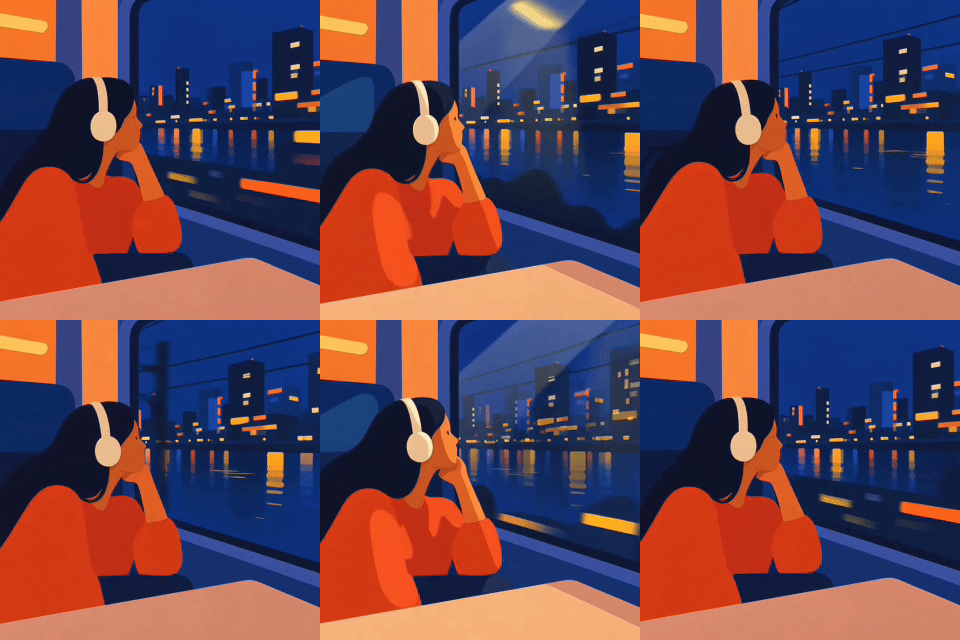
Loop Video is an intelligent workflow that only requires brief prompts to create a looping video. Keep your prompt short and simple, and focus on:
Camera movements
Slow zoom in
Gentle pan left to right
Camera orbit around the subject
Character movements
Hair blowing in the wind
Eyes blinking slowly
Subtle breathing motion
Environment movements
Clouds drifting across the sky
Rain falling steadily
Leaves rustling on trees
You don't need to include all three in every prompt, and you don't need to describe the image or video you've uploaded. Just describe the motion you want to see and what element you want to apply it too.
Example prompts:
"Slow zoom in, clouds drifting across the sky"
"Gentle pan left to right, hair blowing in the wind"
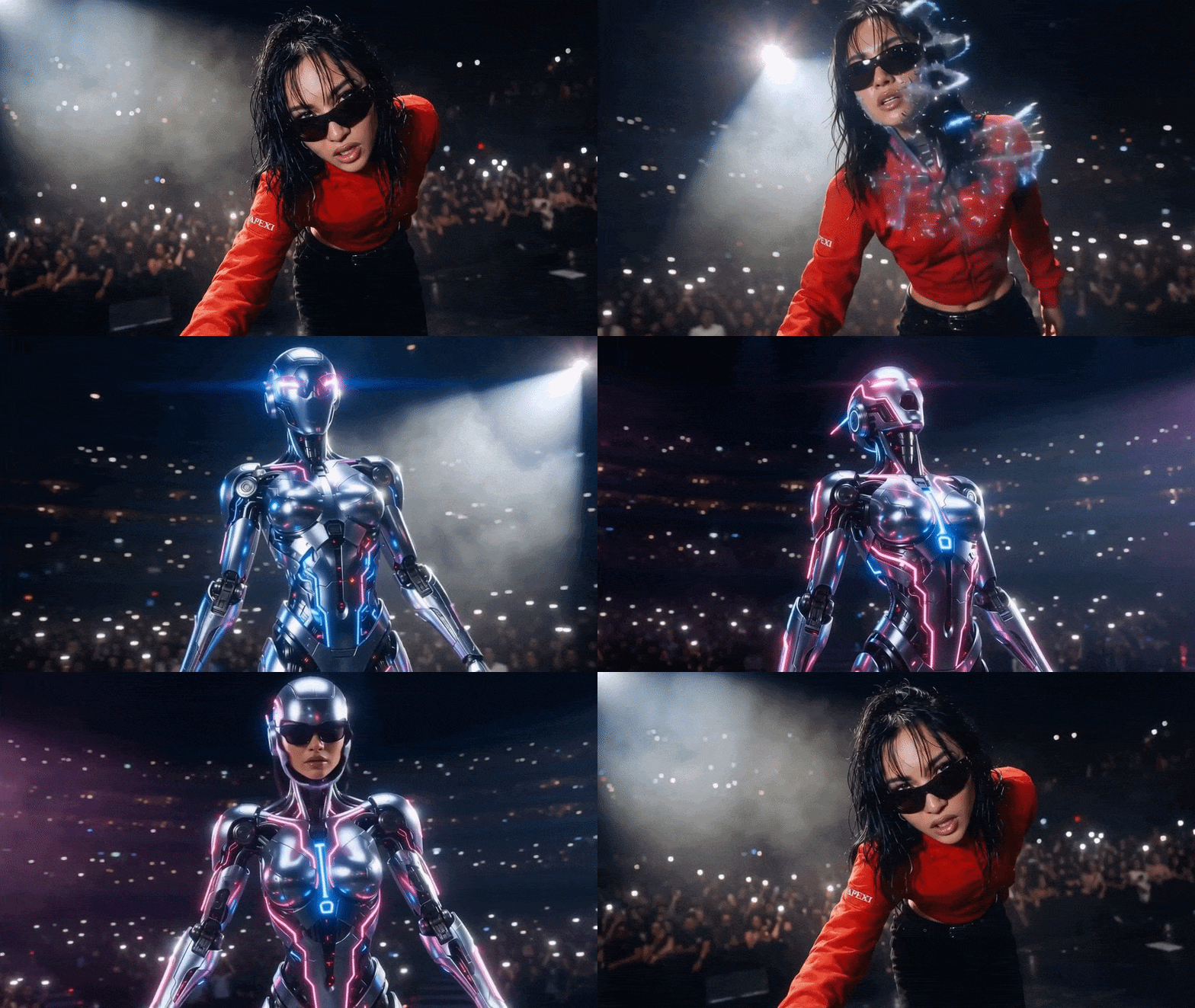
Mode: Loop Your Keyframes
Transition prompt 1: Person transforms into android
Transition prompt 2: Android transforms into person
Was this helpful?
Still need help? Ask the team